Web Objects Repository
Info
The Web Object Repository (Web OR) in INGenious provides a centralized, maintainable, and scalable way to manage UI elements used across your automated tests. Instead of scattering selectors throughout test code or embedding them directly in automation scripts, the repository allows teams to define, store, and reuse web elements from a single source of truth.
Key Benefits:
- Centralized element management – All web objects live in one organized repository.
- Reduced duplication – Reuse element definitions across test suites and frameworks.
- Maintainability – Update a selector once and apply the change everywhere.
- Consistent naming and structure – Standardized element definitions promote cleaner automation design.
Object Repository Structure
Object repository follows the structure below:
```
├── ProjectName
│   ├── PageName1
│   │   └── ObjectName1
│   └── PageName2
│       ├── ObjectName1
│       └── ObjectName2
```
- A single project can include multiple Pages, and each Page can hold multiple Objects.
- Page names must be unique within the project.
- Object names must be unique within their respective page.
-
An object consists of the following attributes that define how it can be identified and interacted with:
Attribute Description Example Value Role Defines the semantic role of the element, often based on ARIA roles. button Text Visible text displayed by the element. Submit Label The associated label or ARIA label of the element. Email Address Placeholder Placeholder text shown inside an input field. Enter your email XPath XPath expression used to locate the element in the DOM. //input[@id='email'] CSS CSS selector used to target the element. #login-button AltText Alternative text for an image or element. Company Logo Title The title attribute of the element. View Details TestID A stable identifier intended for automated testing. data-testid="username-input" ChainedLocator Locator that finds the element relative to a parent or nested element. Parent: div.user-form → Child: input[type='password'] JSPath [Discouraged] JavaScript path copied from browser developer tools (for example, Copy JS Path). document.querySelector("#login-button")
Project and Shared Web OR
There are two types of Web OR that you may use:
-
Project Web OR
Contains objects that can be used within the project and managed from the
Projecttab within the OR panel.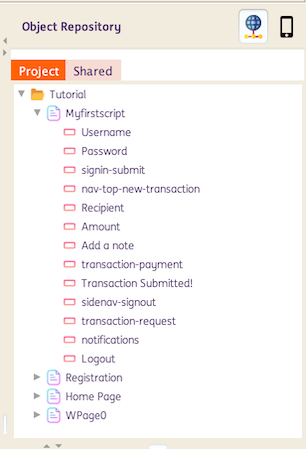
For projects created before version 3.0, an
OR.objectfile is automatically generated whenever a project containing Objects is saved. It stores the Page and Object attributes in XML format and is located inside the respective project directory.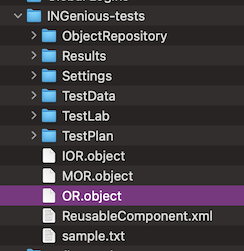
For projects created in version 3.0, a YAML file is automatically generated for each page at the time of page creation. This file contains the objects within the page along with their corresponding attributes and is stored in the project’s directory
<ProjectName>\ObjectRepository\Web\.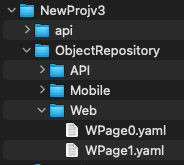
For projects loaded in version 3.0, legacy
.objectfiles are automatically converted to YAML and reorganized into the new folder structure. The original.objectfiles are preserved as.bakfiles under<ProjectName>\ProjectXMLOR\.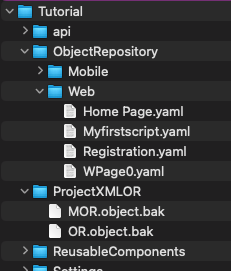
When a Project Web Object (PWO) is used in a test step, the identifier [Project] PageName will show as its reference.
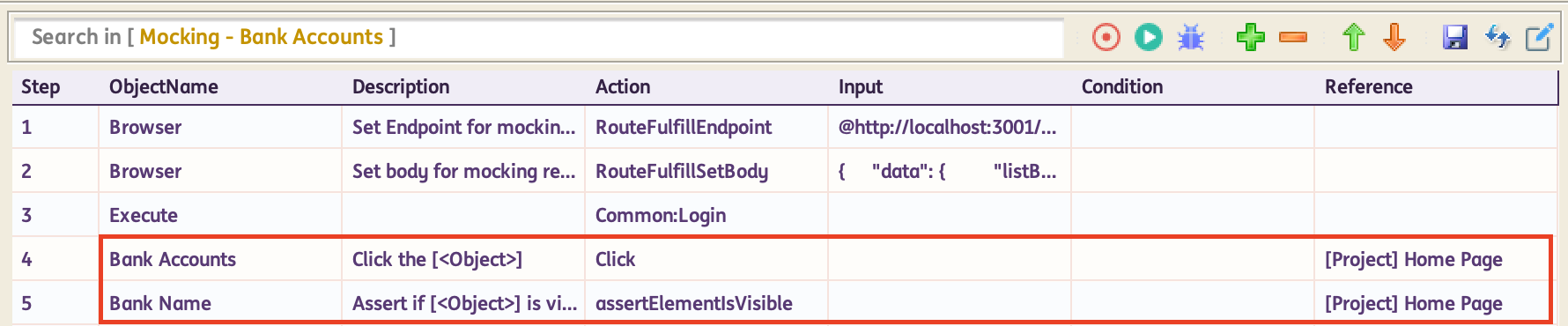
-
Shared Web OR
Contains objects that can be used across different projects and are managed from the
Sharedtab within the OR panel.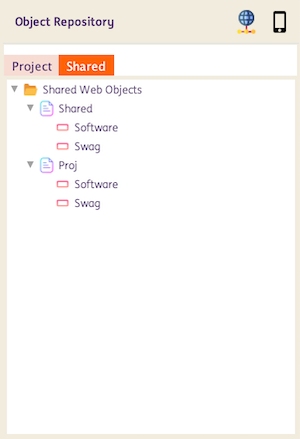
Similar to Project WebOR, for projects created before version 3.0, a
SharedOR.objectfile is automatically generated whenever a project saves Objects created underSharedor when Objects are copied fromProjecttoShared. LikeOR.object, it stores Page and Object attributes in XML format and is located in theShared\SharedWebObjects\directory.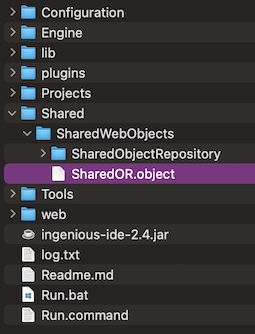
For projects created in version 3.0, a YAML file is automatically generated for each page—either upon page creation under
Sharedor when pages or objects are moved fromProjecttoShared. This file contains the page’s objects and their corresponding attributes and is stored in theShared\SharedObjectRepository\Webdirectory. Thewebor-projectsdata.yamlfile maintains the list of projects that use the Shared Web Objects.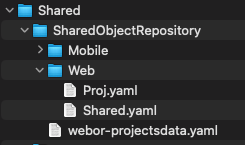
For projects loaded in version 3.0, legacy
.objectfiles are automatically converted to YAML and reorganized into the new folder structure. The original.objectfiles are preserved as.bakfiles underShared\SharedXMLOR\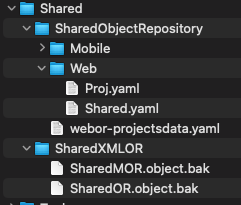
When a Shared Web Object (SWO) is used in a test step, the identifier [Shared] PageName will show as its reference.

How to use Project and Shared Web OR
-
Pages and Objects can be added directly within the Project and Shared repositories using the
Add PageorAdd Objectoptions. -
Objects from Project and Shared Web OR can be used in a single Test Scenario.
For example:

-
For versions 2.4 and 2.4.1, Pages and Objects created under the
Projecttab can be copied to theSharedsection by using theCopy to Sharedoption. When an entire Page is copied, all Objects under that Page—including their attributes—are copied. When copying a single Object, only that Object and its corresponding Page are copied. Note that existing test steps using the Project‑level Web Object (PWO) will not be automatically updated to use the Shared Web Object (SWO).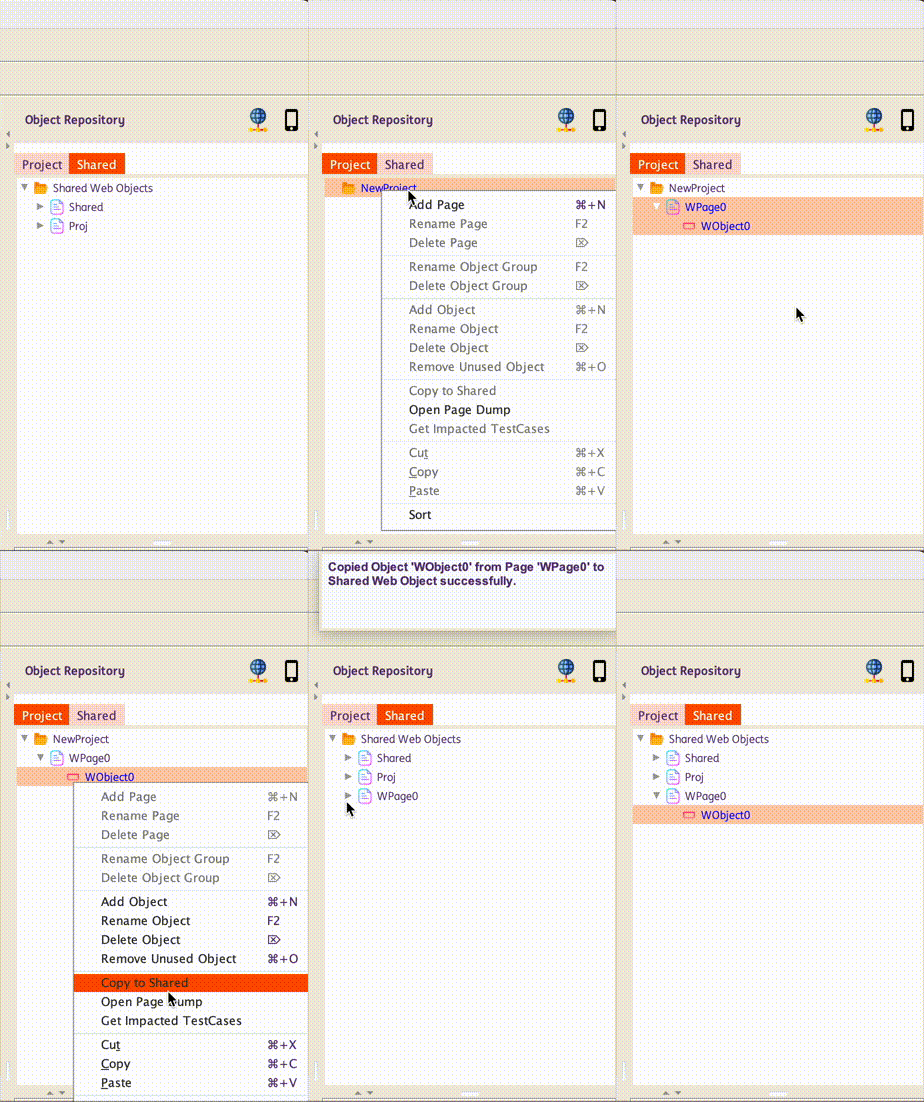
-
For version 3.0,
Copy to Sharedoption is replaced byMove to Sharedoption. When an entire Page is moved, all Objects under that Page—including their attributes—are moved. When moving a single Object, only that Object and its corresponding Page are moved. Note that existing test steps using the Project‑level Web Object (PWO) are automatically updated to use the Shared Web Object (SWO) within the project.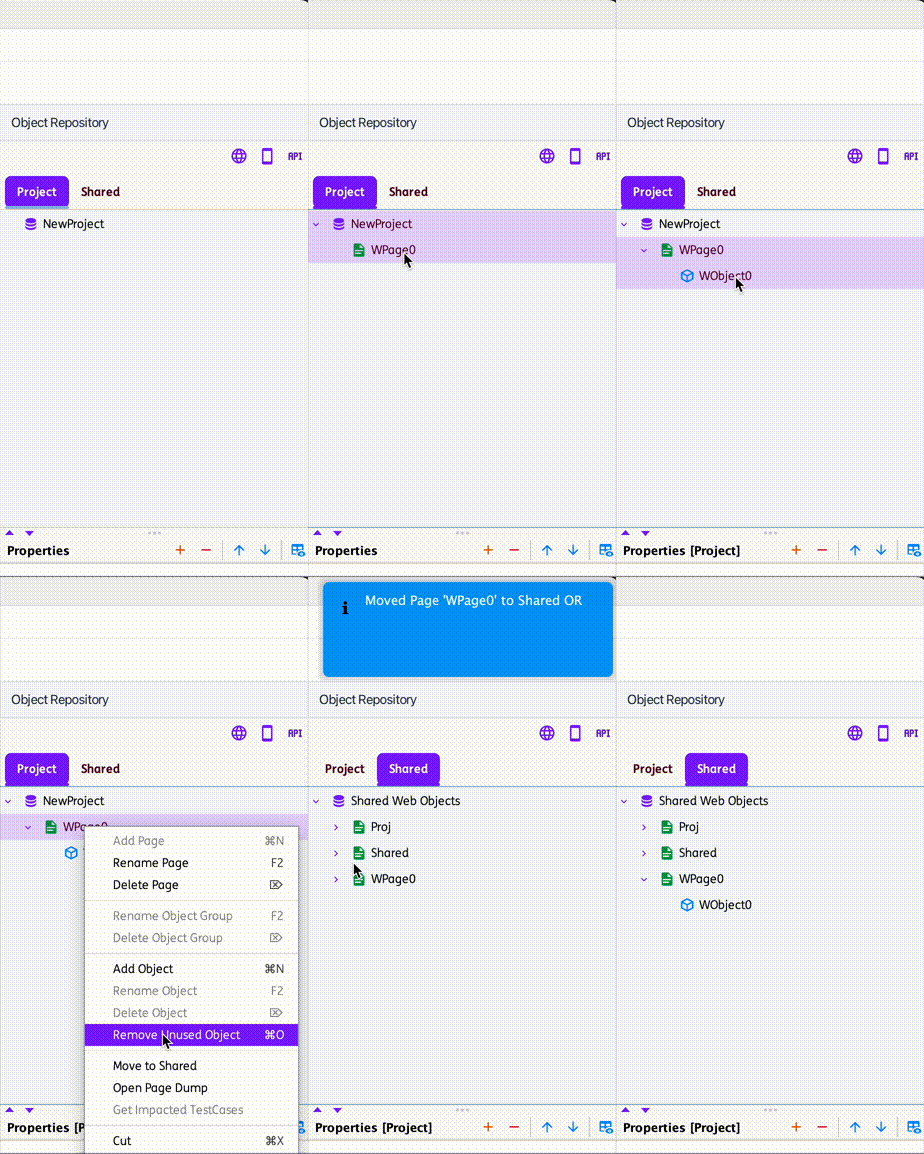
-
Pages and Objects may share the same names across the Project and Shared repositories. However, names must remain unique within each individual repository.

-
Pages and Objects in both the Project and Shared repositories can be renamed using the
Rename PageorRename Objectoptions. After renaming, any existing test steps in the current project that previously referenced an SWO using the old name will be updated automatically. -
Pages and Objects in both the Project and Shared repositories can be deleted using the
Delete PageorDelete Objectoptions. However, once deleted, any existing test steps that previously referenced an SWO or PWO will still attempt to use the removed Page or Object, which may result in errors during test execution. -
To view all test cases that reference an Object within the project, use the
Get Impacted Casesoption. This feature is available for both Project and Shared repositories.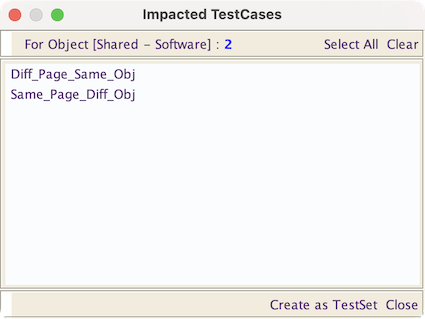
Suggestion: Before renaming or deleting an object, please use the
Get Impacted TestCasesoption for checking.