Creating Mobile App Tests
Write Tests
-
Head over to the Design Pane of INGenious
-
Create Objects in the Object Repository with appropriate selectors like
xpath,AccessibilityIdetc. These can easily be captured from Appium Inspector -
Drag and drop the objects into the test case canvas
-
Select appropriate actions like
Tap,ScrollorSetfor each relevant step
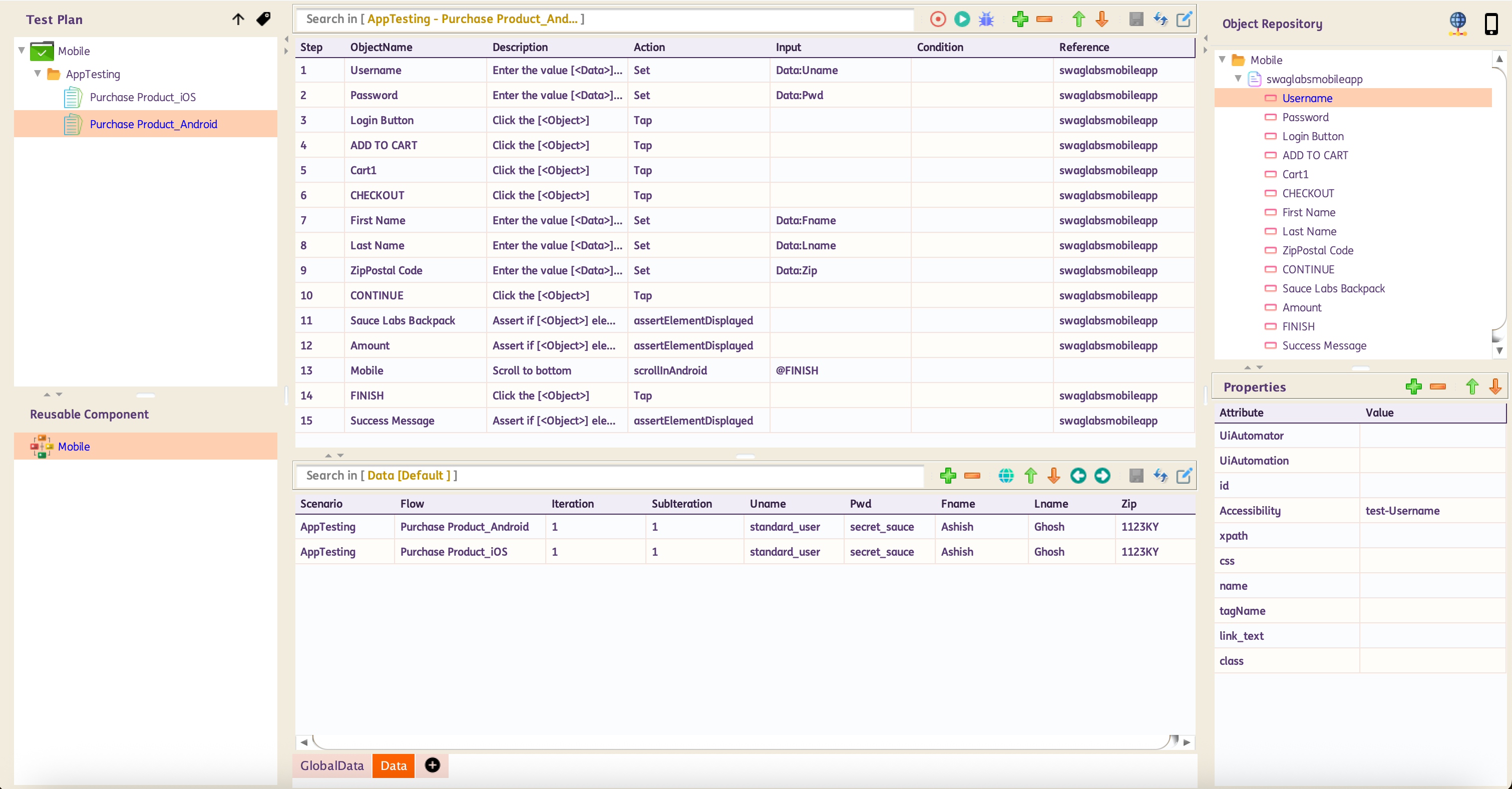
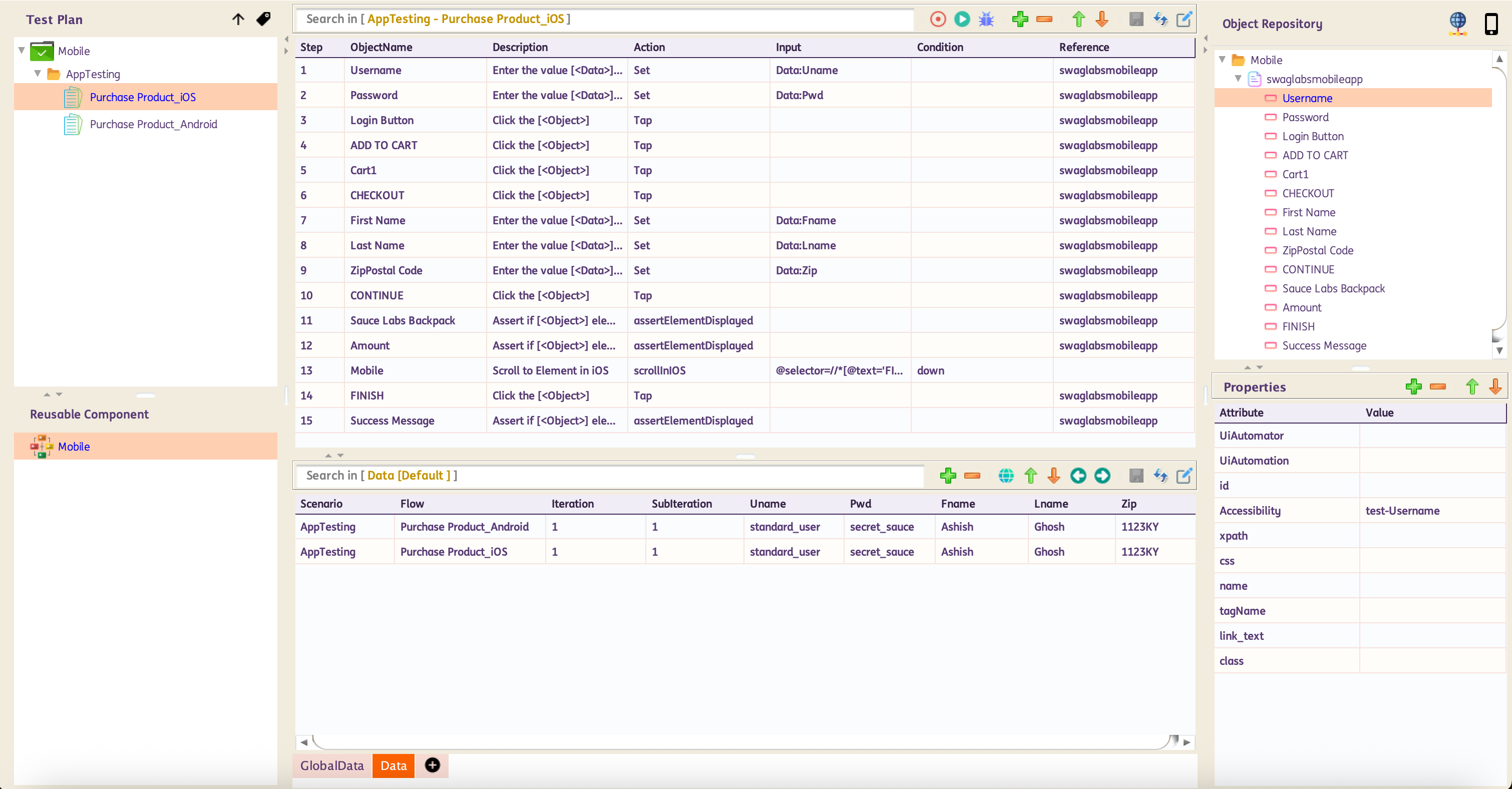
Any Android and iOS Test Case can be used as a LambdaTest.
Setup a LambdaTest configuration by following the steps in Sample Lambda Configurations
Test Execution - Design Pane
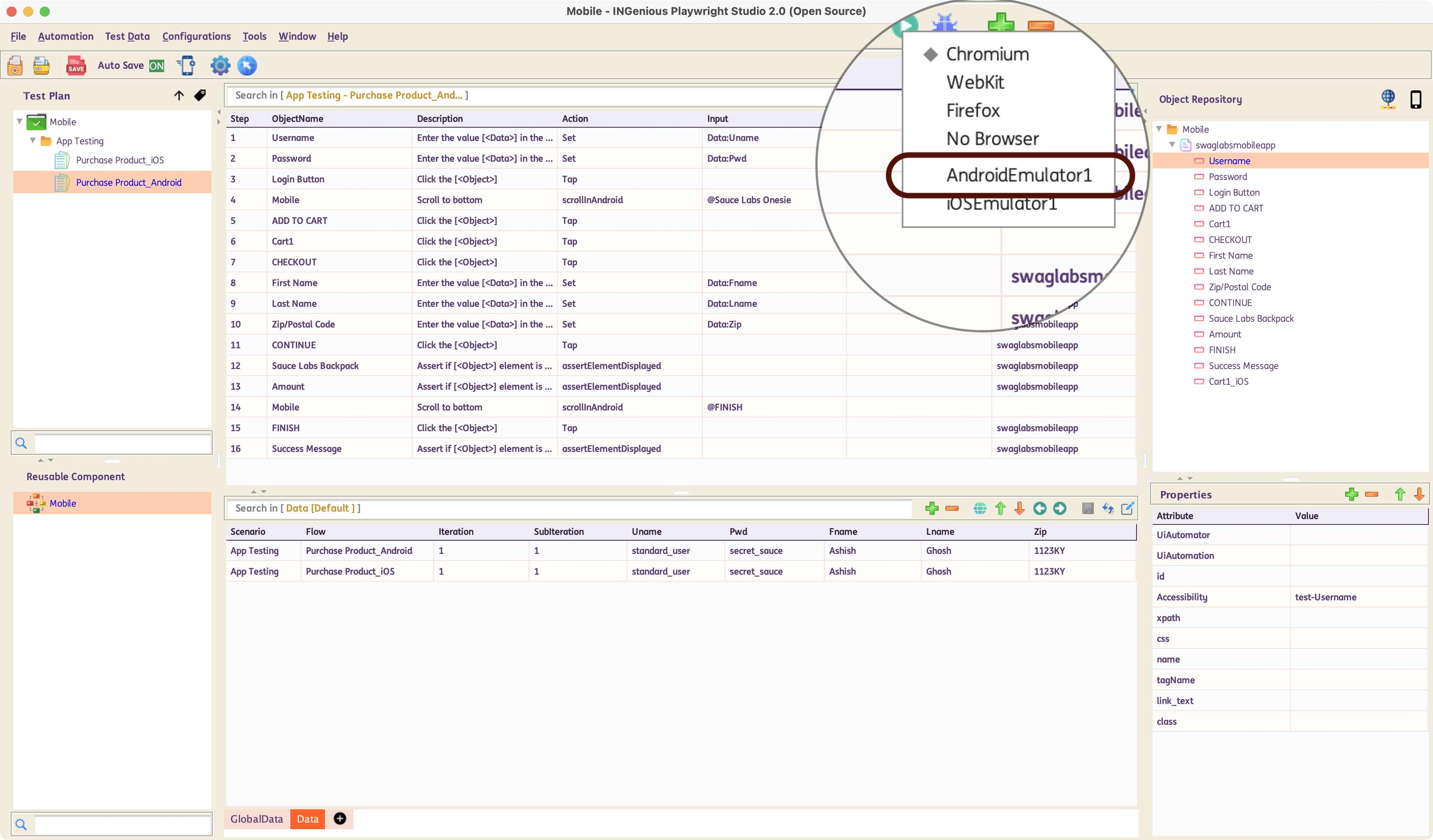
While running the test from the Design Pane, make sure to select the appropriate Appium Configuration that was created for the test. You can do that by right clicking on the Run Button and selecting the Configuration.
Test Execution - Execution Pane
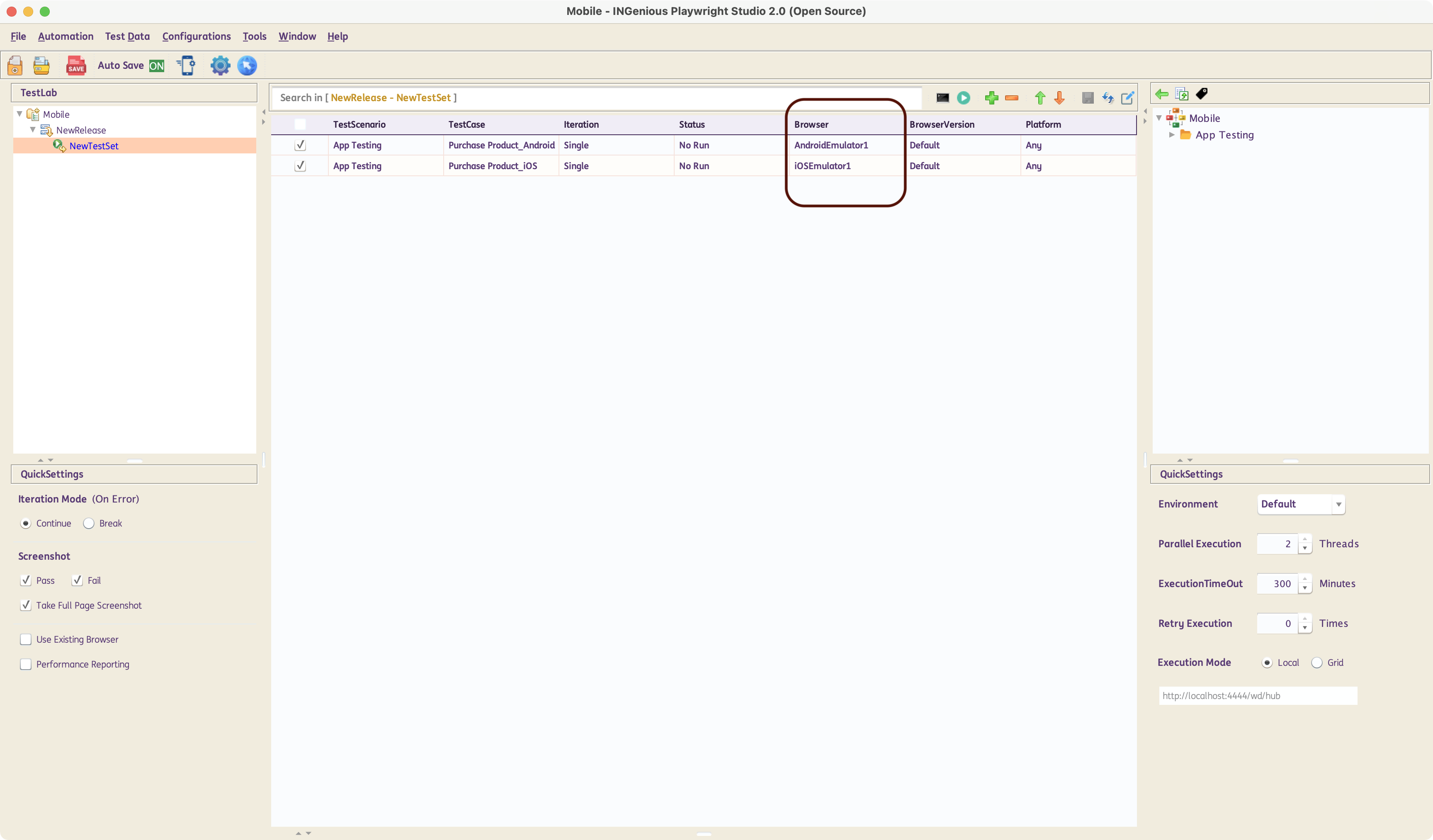
While running the test from the Execution Pane, make sure to select the appropriate Appium Configuration that was created for the test. You can do that by selecting the Configuration in the Browser Column.
Test Results
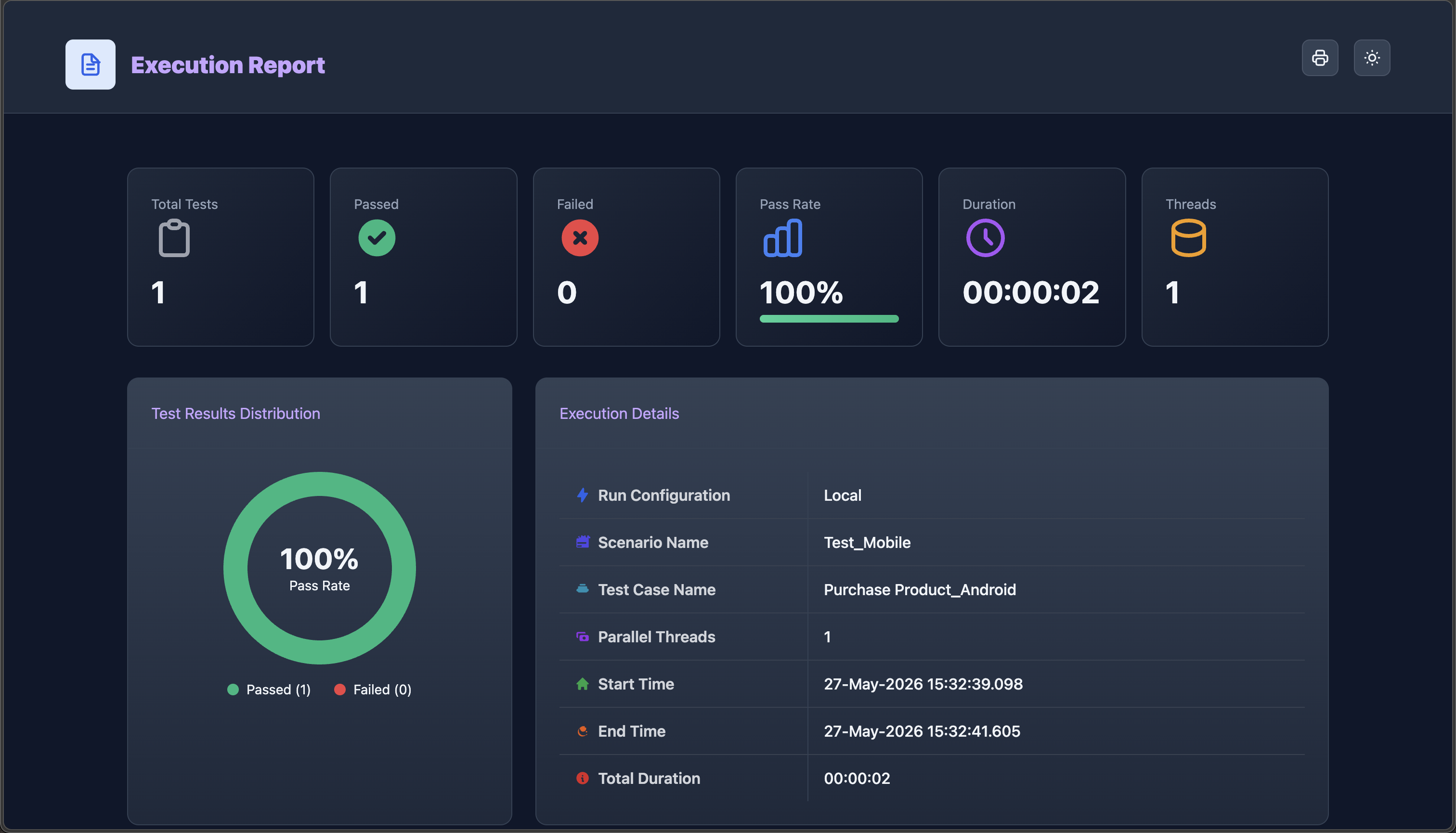
Results of tests are automatically opened in a test browser after execution.
Test Results for LambdaTest Test Cases
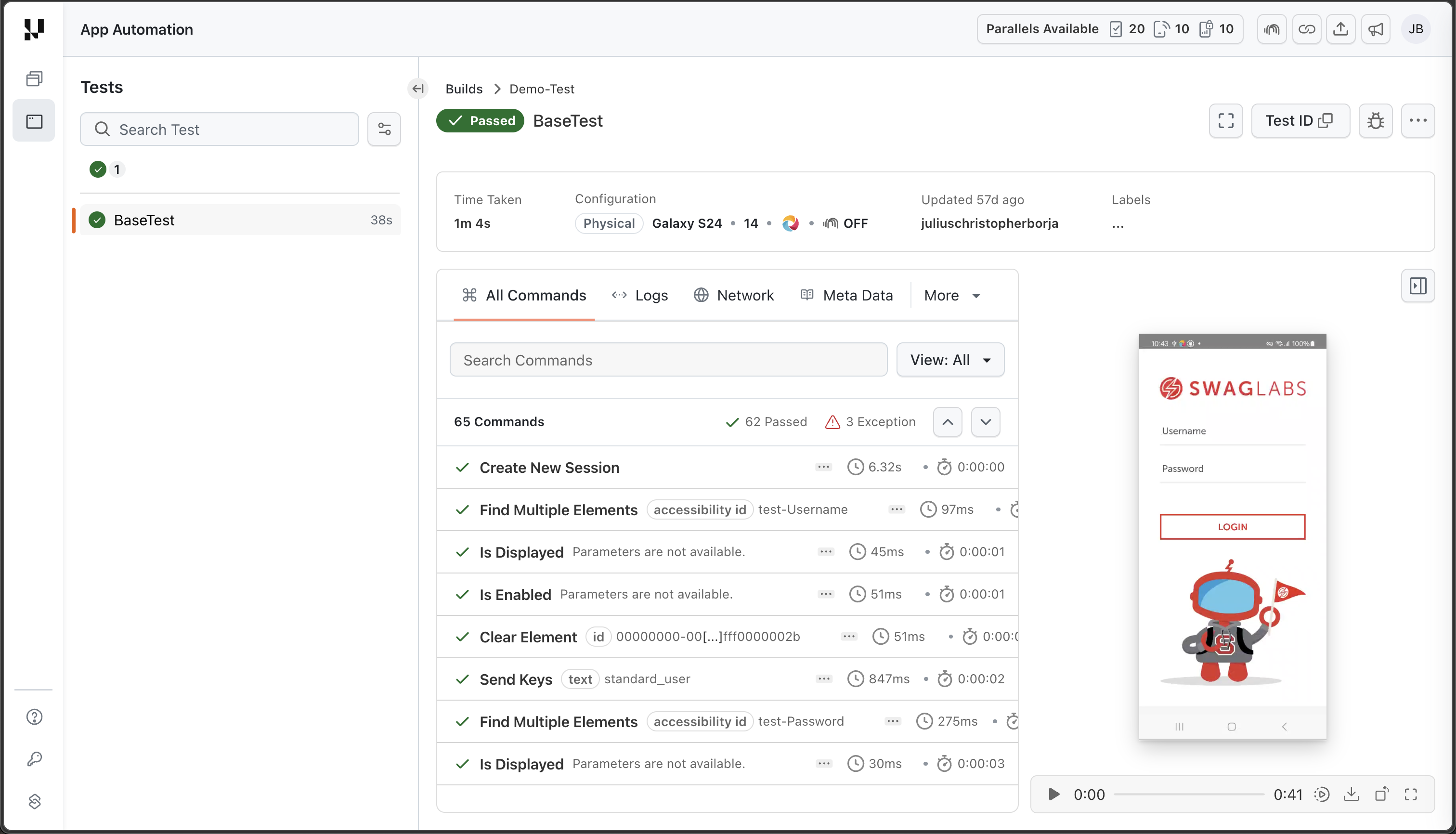
In addtion to test results from the IDE, results can also be found under App Automation in the LambdaTest web application.
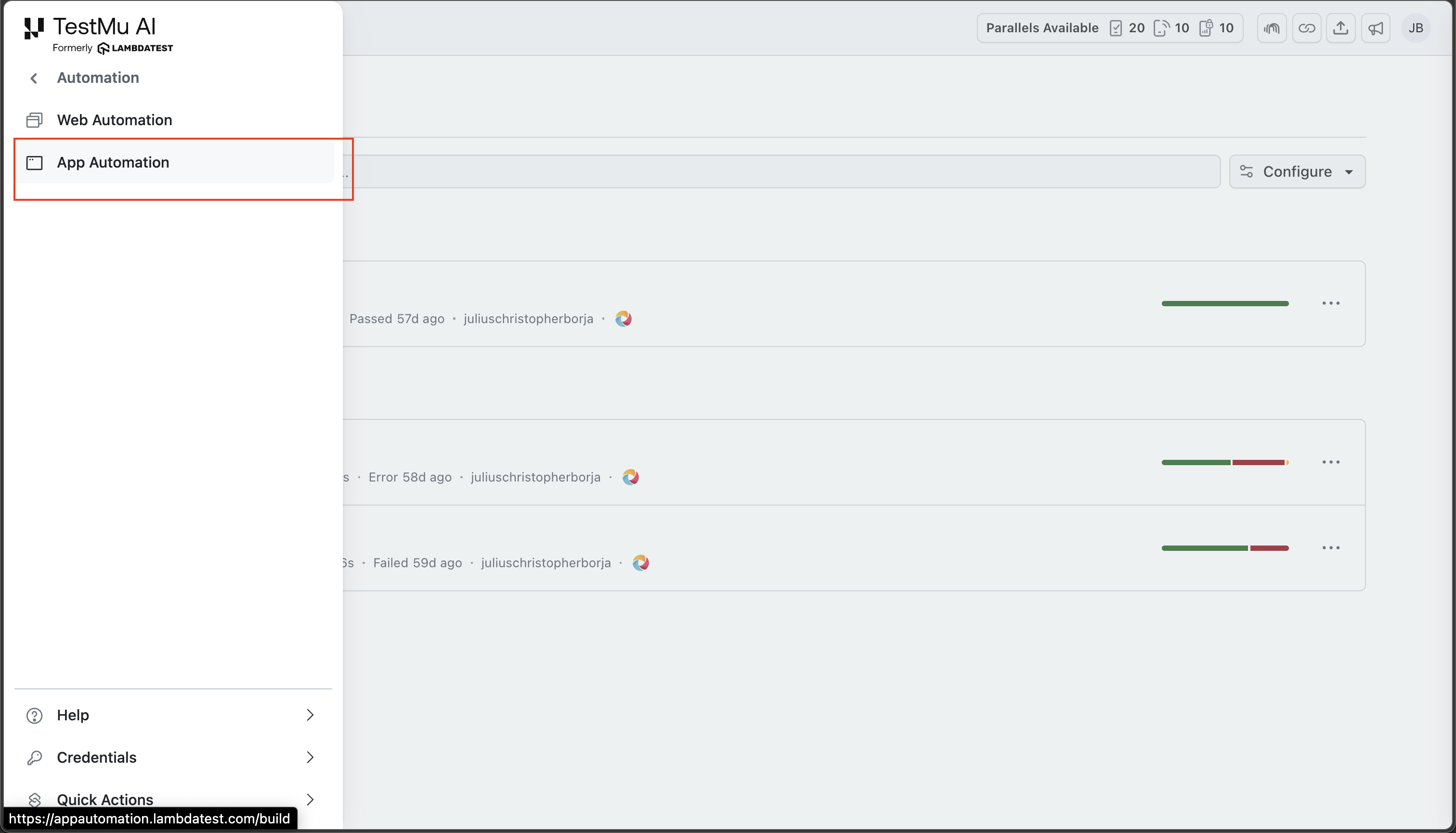
The results come with a video recording of the executed test steps as well as logs and network information during the run.