Locator Strategy
Info
INGenious uses the built-in locator strategy exposed by Playwright and provides an easy interface to configure them
Role
Locate by Role
Consider this DOM example :
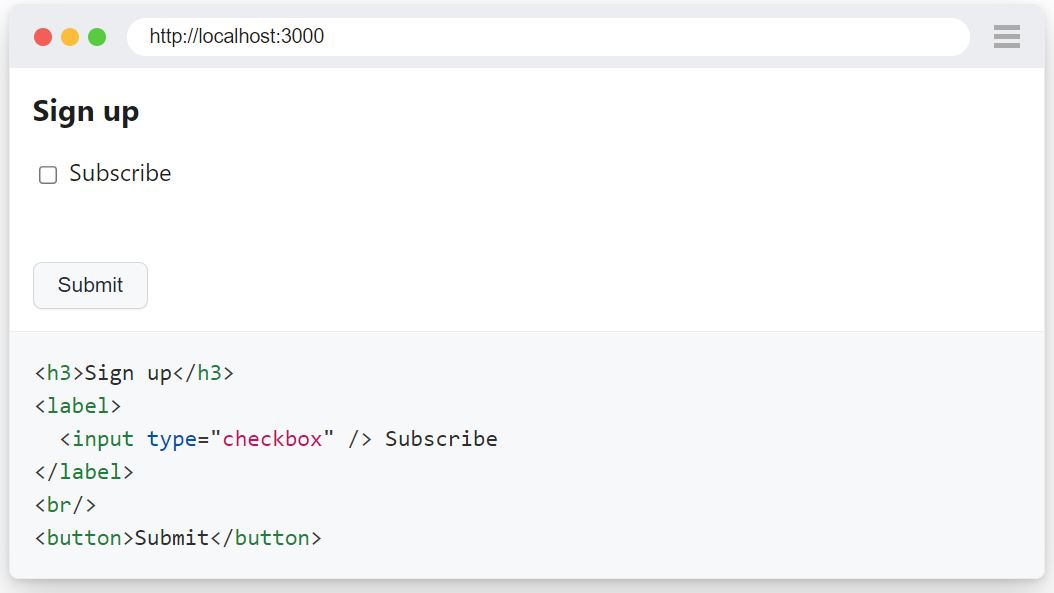
You can locate each element by its implicit role:



ExactOption
Sometimes you may have texts or names with partial matches in the DOM. For example :
- A
Buttonwith textSubmit - A
Buttonwith textSubmit Your Application
In this case, to identify the first one, you can use the following:
In INGenious Playwright Studio, you will add it as this :
Label
Locate by Label
Consider this DOM example :
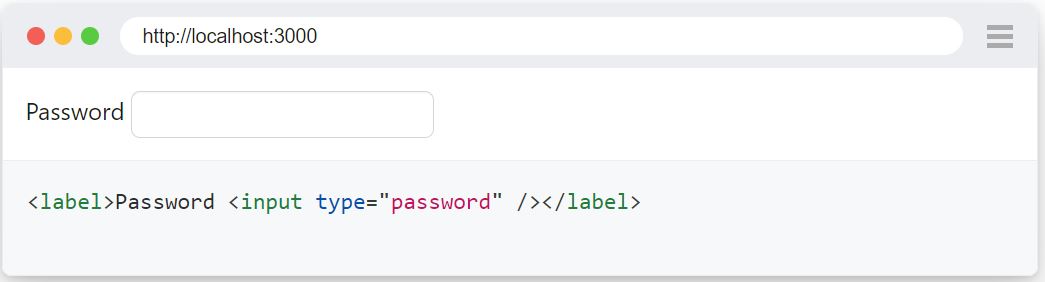
You can locate the element by the label text:
- Password Input Box

ExactOption
Sometimes you may have texts or Labels with partial matches in the DOM. For example :
- A
Labelwith textAddress - A
Labelwith textSecondary Address
In this case, to identify the first one, you can use the following:
In INGenious Playwright Studio, you will add it as this :
Placeholder
Locate by Placeholder
Consider this DOM example :
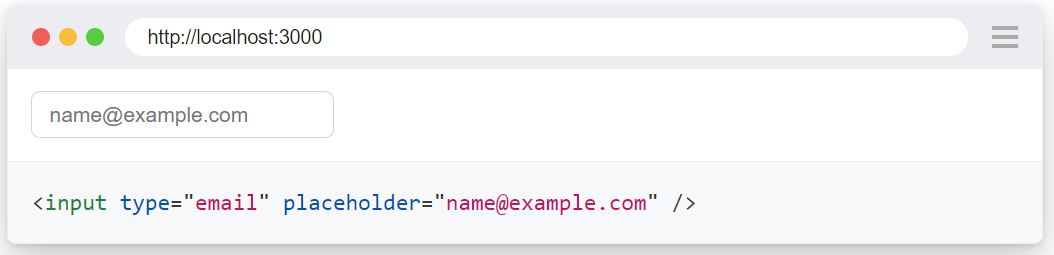
You can locate the element by the placeholder text:
- Input Box

ExactOption
Sometimes you may have placeholder with partial matches in the DOM. For example :
- A
Placeholderwith textEmail - A
Placeholderwith textSecondary Email
In this case, to identify the first one, you can use the following:
In INGenious Playwright Studio, you will add it as this :
Text
Locate by Text
Consider this DOM example :
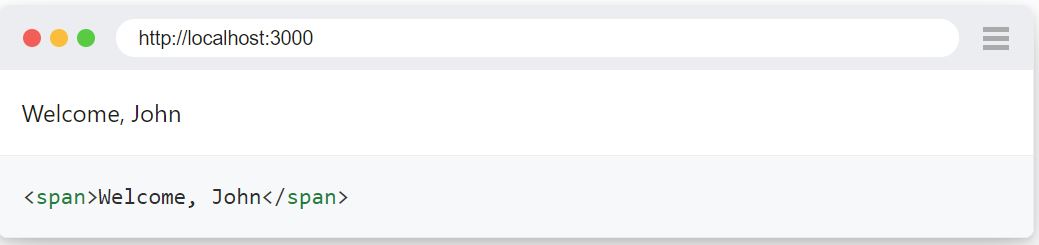
You can locate the element by the text it contains:
- Span

ExactOption
Sometimes you may have texts with partial matches in the DOM. For example :
- A
headerwith textWelcome - A
spanwith textWelcome, John
In this case, to identify the first one, you can use the following:
In INGenious Playwright Studio, you will add it as this :
Alt Text
Locate by Alt Text
Consider this DOM example :
You can locate the element by the alt text:
- Image

ExactOption
Sometimes you may have alt texts with partial matches in the DOM. For example :
- An
imgwith alt testING - An
imgwith alt textING Lion
In this case, to identify the first one, you can use the following:
In INGenious Playwright Studio, you will add it as this :
Title
Locate by Title
Consider this DOM example :
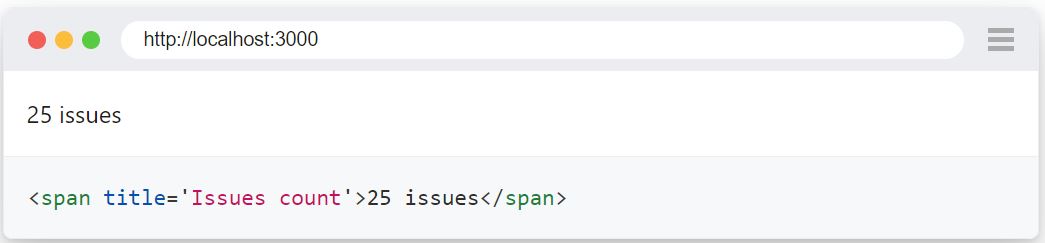
You can locate the element by the title :
- Image

ExactOption
Sometimes you may have titles with partial matches in the DOM. For example :
- A
spanwith titlePayments - An
spanwith titleDomestic Payments
In this case, to identify the first one, you can use the following:
In INGenious Playwright Studio, you will add it as this :
Test Id
Locate by Test Id
Consider this DOM example :
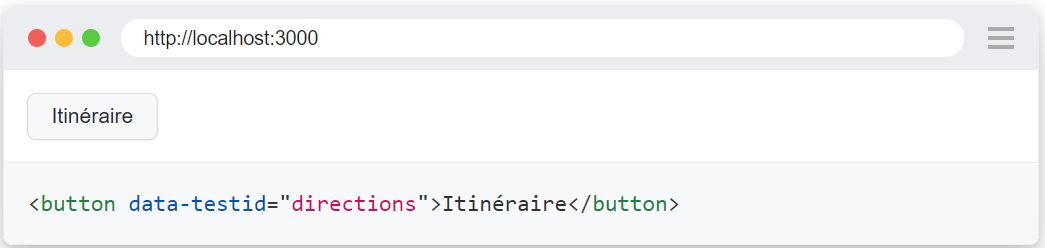
You can locate the element by the title :
- Button

XPath or CSS
Locate by XPath or CSS
- For CSS :
In INGenious Playwright Studio, you will add it as this :

- For Xpath :
In INGenious Playwright Studio, you will add it as this :

Piercing Shadow DOM
Locate in Shadow DOM
All locators in Playwright by default work with elements in Shadow DOM. The exceptions are:
- Locating by XPath does not pierce shadow roots.
- Closed-mode shadow roots are not supported.
Consider the following example with a custom web component:
<x-details role=button aria-expanded=true aria-controls=inner-details>
<div>Title</div>
#shadow-root
    <div id=inner-details>Details</div>
</x-details>
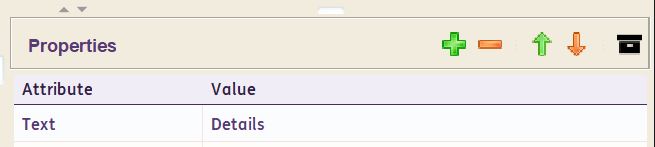
In INGenious Playwright Studio, you will add it as this :
Frames
Locate in Frames
All locators in Playwright by default work with elements inside a frame/iframe. But first you need to let the page locate the frame using the framelocator function.
You can do that in this way :
In INGenious Playwright Studio, you will add it as this :
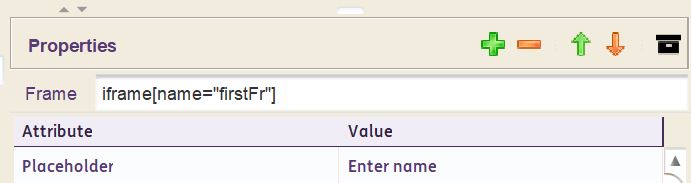
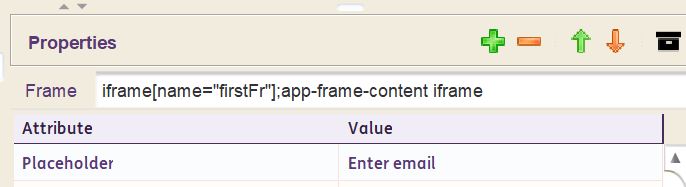
If there are nested frames, then just add the frame locators separated by semicolon, in the Frame box :
JSPath
Locate by JSPath
JSPath allows you to identify an element using a JavaScript path copied from browser developer tools.
For example, in Chrome or Edge DevTools:
Example JSPath:
In INGenious Playwright Studio, you can paste this value into the JSPath attribute of a Web Object.
Discouraged
The JSPath attribute can be used with JavaScript paths copied directly from browser developer tools.
While supported, this locator strategy is generally less reliable and maintainable than attributes such as Role, Text, Label, CSS, or XPath. For this reason, JSPath is marked as [Discouraged] in the Object Repository UI and should only be used when other locator strategies are not suitable.