Test Data
Info
Every project maintains its own test data. A datasheet, or even an entire environment, can be promoted to Shared Test Data, making it available for reuse across any project within the same INGenious installation. This follows the same Project and Shared scoping model used by User Intent and Object Repositories.
Key Benefits:
- Data-driven test cases – Keep values out of your steps and drive the same test case with different rows of data.
- Multiple environments – Maintain separate values per environment (
Default,QA,UAT, …) without duplicating test cases. - Cross-project reuse – Promote a datasheet to Shared so it can be referenced from any project, instead of copy-pasting the same CSV into every project that needs it.
- Centralized maintenance – Update a Shared datasheet once and every project referencing it picks up the change.
Test Data Structure
Test Data is organized as follows:
```
├── TestData (Default)
│   ├── Sheet1.csv
│   └── Sheet2.csv
│   └── QA (Environment)
│       ├── Sheet1.csv
│       └── Sheet2.csv
```
- A project can define multiple Environments (see Know the Framework for how to set these up). Every Environment has its own set of datasheets and its own Global Datasheet (see Global Datasheets).
-
Each datasheet is a
.csvfile made up of rows, one row per data set. Every row carries these built-in columns, followed by any custom columns you add:Column Description Scenario The Scenario the row's data belongs to. Flow The Test Case the row's data belongs to. Scope Read-only. Auto-populated as @Project,@Shared, or empty (Test Plan) based on where the selected Scenario/Test Case lives.Iteration The iteration number the row belongs to. SubIteration The sub-iteration number the row belongs to. -
Sheet names must be unique within the scope (Project or Shared) they belong to.
Project and Shared Test Data
There are two scopes of Test Data:
-
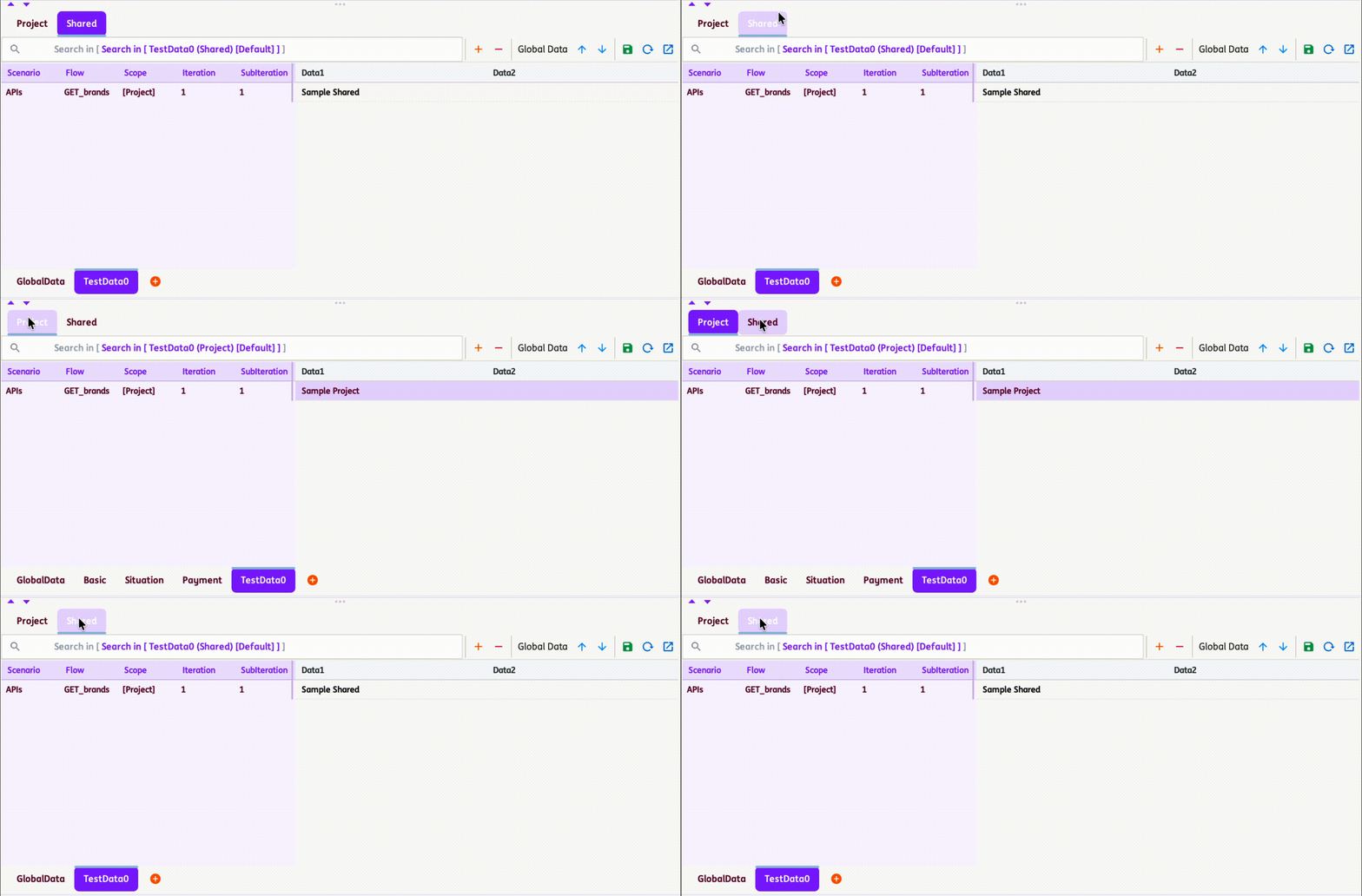
Project Test Data
Contains datasheets that can be used within the project and are managed from the
Projecttab in the Test Data pane.They live under
<ProjectName>\TestData\<Environment>\in the project directory.When a Project datasheet is used in a test step, it can be referenced as
Sheet:Column(the default, unchanged behavior) or explicitly asSheet:Column@Project. -
Shared Test Data
Contains datasheets that can be used across different projects opened in the same INGenious installation, and are managed from the
Sharedtab in the Test Data pane.They live outside any single project, under
Shared\SharedTestData\<Environment>\at the application level — so any project can reference the same Shared datasheet without copying it.A
projects.itemsmanifest tracks which projects currently reference Shared Test Data. INGenious uses this list to warn you before a rename or delete affects other projects (see Renaming and Deleting Shared Test Data) — the same convention used by Shared User Intent and the Shared Object Repository.When a Shared datasheet is used in a test step, it is referenced as
Sheet:Column@Shared. -
Datasheets may share the same names across the Project and Shared scopes. However, names must remain unique within each individual scope.
Referencing Test Data in Test Steps
| Reference form | Resolves against |
|---|---|
Sheet:Column |
The project's own Test Data (unchanged, canonical form). |
Sheet:Column@Project |
The project's own Test Data — tag explicit. |
Sheet:Column@Shared |
The app-root Shared Test Data store. |
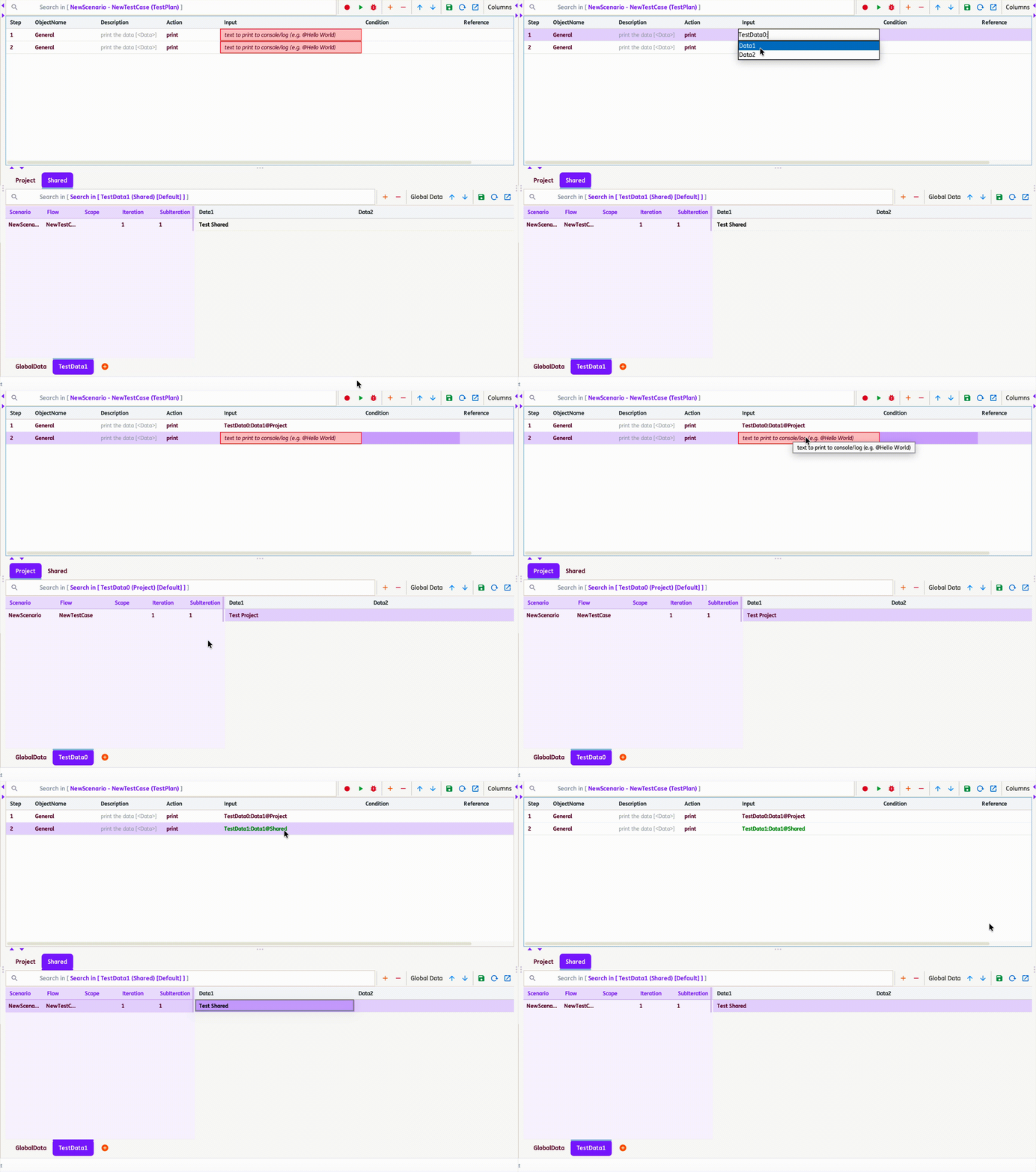
- The scope tag trails the whole
Sheet:Columnreference — it is appended after the column, never before the sheet name (so it stays clear of the sheet name itself). - The easiest way to add a reference is to drag and drop a column header from either the
ProjectorSharedTest Data tab onto a step's Input/Condition field — INGenious inserts the correctly tagged reference (Sheet:Column@ProjectorSheet:Column@Shared) automatically. - Inside a larger value — a webservice payload, SQL text, a URL, a file template — a Test Data reference must be wrapped in curly braces to tell it apart from the surrounding text, for example
{Sheet:Column}or{Sheet:Column@Shared}. - An untagged or
@Project-tagged reference only ever resolves against the project's own Test Data — it will never silently fall back to Shared Test Data. Only an explicit@Sharedtag resolves against the Shared store.
Making Test Data Shared
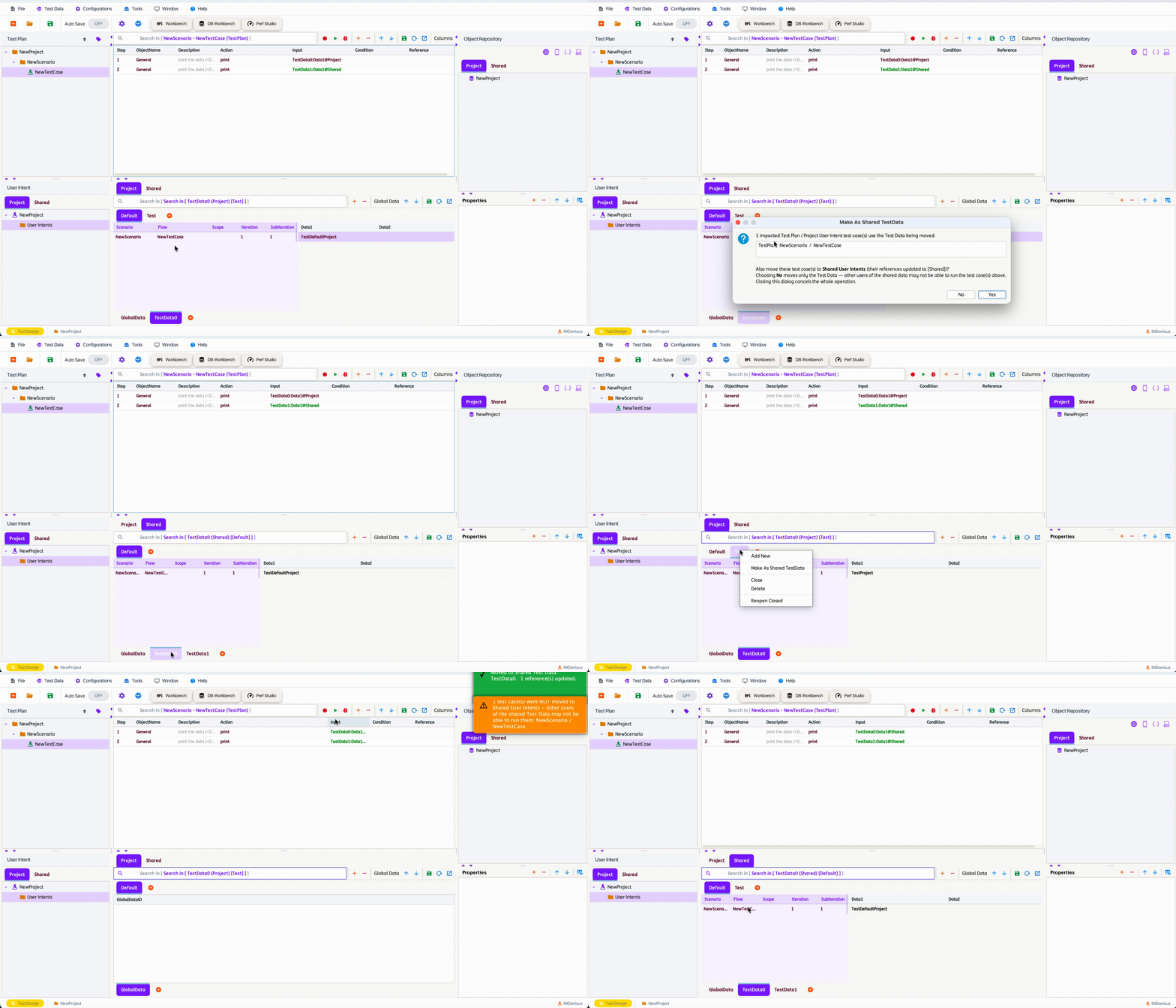
A Project datasheet is promoted to Shared Test Data using Make As Shared TestData:
- Right-click a datasheet tab (on the
ProjectTest Data tab) and chooseMake As Shared TestDatato move just that sheet. - Right-click an environment tab and choose
Make As Shared TestDatato move the entire environment — every datasheet in it, plus its Global Data. TheDefaultenvironment is kept but emptied; any other environment is removed from the project once its data has moved. Make As Shared TestDatais only offered from theProjecttab, never fromShared. Global Data cannot be moved on its own from a datasheet's menu — use the environment'sMake As Shared TestDatainstead.
When you confirm the move:
- If Test Plan or Project User Intent test cases use the data being moved, INGenious lists them and asks whether to also convert them to Shared User Intents so other projects can actually run them, not just read their data.
- Yes converts the listed test cases to Shared User Intents and rewrites their references to
@Sharedas well. - No moves only the Test Data — INGenious then warns that other consumers of the shared data may not be able to run those test cases.
- Dismissing the dialog cancels the whole operation.
- When a test case is converted to a Shared User Intent, INGenious also detects any Project-scoped Object Repository items it uses and offers to move those to the Shared Object Repository as well, the same way the tree's Make As Shared User Intent flow does.
- Yes converts the listed test cases to Shared User Intents and rewrites their references to
- The datasheet (or environment) is moved to
Shared\SharedTestData\, and every existing reference to it — in the Test Plan, Project User Intents, and Shared User Intents — is rewritten fromSheet:ColumntoSheet:Column@Shared. - If the same sheet name still exists in another environment of the project, its references are left untouched (retagging them would break that other environment) — INGenious warns you which sheets were only partially moved so you can move those environments too.
- A summary notification reports how many sheets moved, how many references were updated, and how many test cases were converted to Shared User Intents.
Importing Test Data
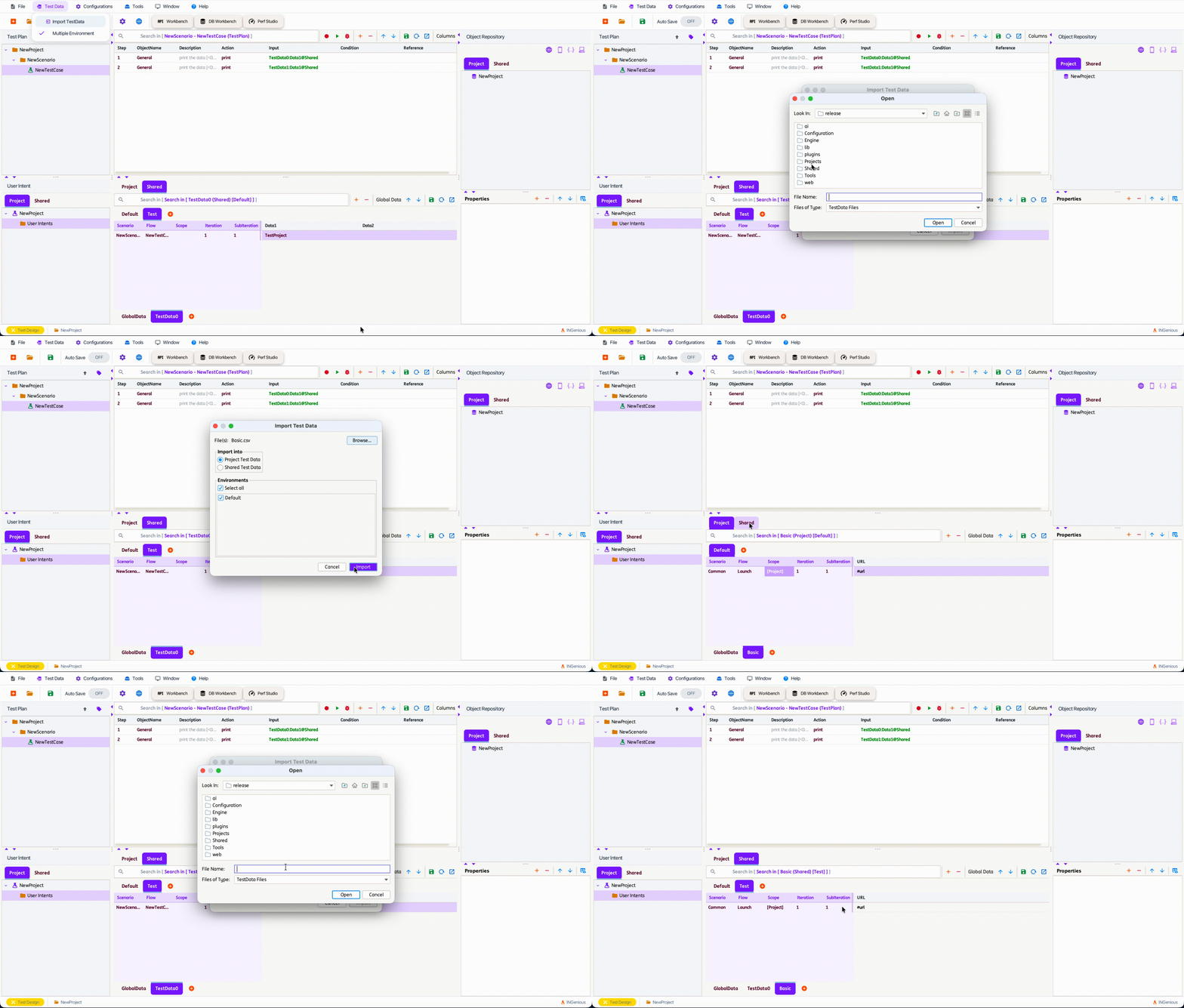
Use Test Data → Import TestData from the menu bar to import one or more CSV datasheets:
- Browse for one or more
.csvfiles. - Choose Import into: Project Test Data or Shared Test Data (a warning reminds you that Shared Test Data is shared across every project that uses it).
- Tick one or more target Environments (or Select all).
- Click Import. The file is imported into every checked environment; an environment that already has a sheet with the same name is skipped, and the outcome is reported in a notification.
Shared Environment (Execution Setting)
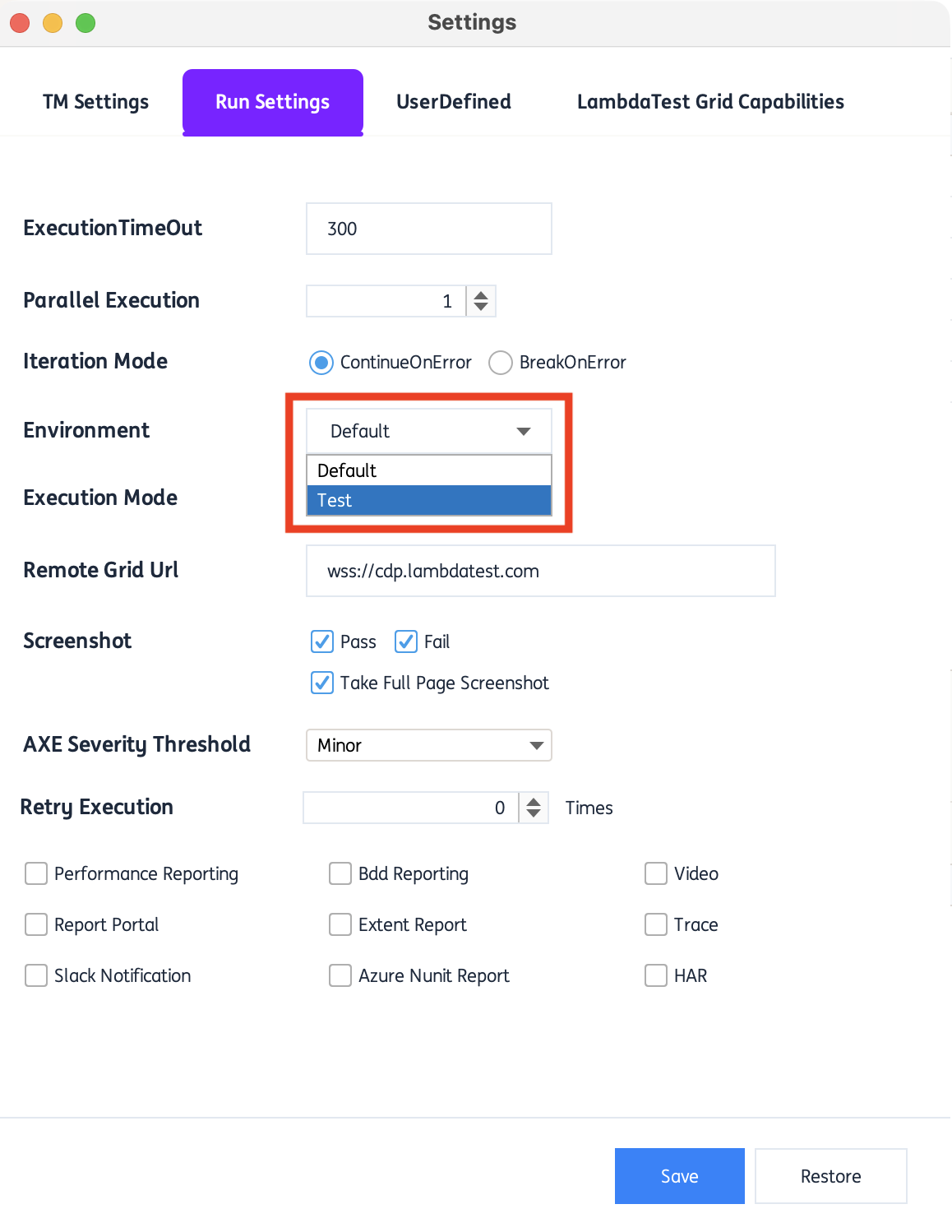
Because Project and Shared Test Data are independent stores, a test run resolves them against two separate environment settings in Run Settings / Quick Settings:
- Environment – which Project Test Data environment to use (as before).
- Shared Environment – which Shared Test Data environment
@Sharedreferences resolve against.
This lets a run use, for example, Project environment QA while resolving all @Shared references against Shared environment Default.
Renaming and Deleting Shared Test Data
Because a Shared datasheet or environment may be referenced by several different projects, INGenious checks the projects.items manifest before a destructive change and warns you if other projects depend on it, listing every project on disk that currently references it before you confirm the rename or delete.
Review the listed projects before proceeding — test steps in other projects that reference the Shared datasheet by its old name will not resolve until they are updated.