SAP Testing
What is SAP Testing?
SAP Testing is the process of validating business processes and workflows in SAP GUI applications to ensure they work as intended. Automated SAP Testing helps catch issues early, improves reliability, and accelerates delivery of SAP-based solutions.
How does INGenious perform SAP Testing?
INGenious automates SAP GUI testing by driving the SAP GUI client using Java and the JACOB (Java COM Bridge) library. It interacts with SAP GUI elements, performs actions (like fill, click, select), and validates results just as a user would.
- The framework supports:
- Automated login and navigation
- Data entry and extraction
- Validation of SAP screen values and business rules
- Integration of SAP steps in a single test
Set up SAP Configuration
Follow the steps below to create an SAP-based test case in INGenious.
-
Click on the Configuration icon

-
Inside the Manage Browser tab, enter the name of the SAP Configuration you want to create, in the
Browsertextbox and hit Enter -
Inside the new browser configuration, set your SAP connection details:
app- full path to your SAP GUI logon executable
e.g.C:/<YourPath>/SAP/FrontEnd/SAPgui/saplogon.exelibraryPath- path to your Java COM Bridge (JACOB) library
e.g.C:/<YourPath>/libs/jacob-1.20-x64.dlldllPath- full path to your JACOB DLL file
e.g.C:/<YourPath>/libs/jacob-1.20-x64.dllconnectionName- connection name for your SAP GUI connection
e.g.SAP_GUI_DEV,SAP_GUI_UATplatformName- operating system platform for SAP GUI
e.g:Windows
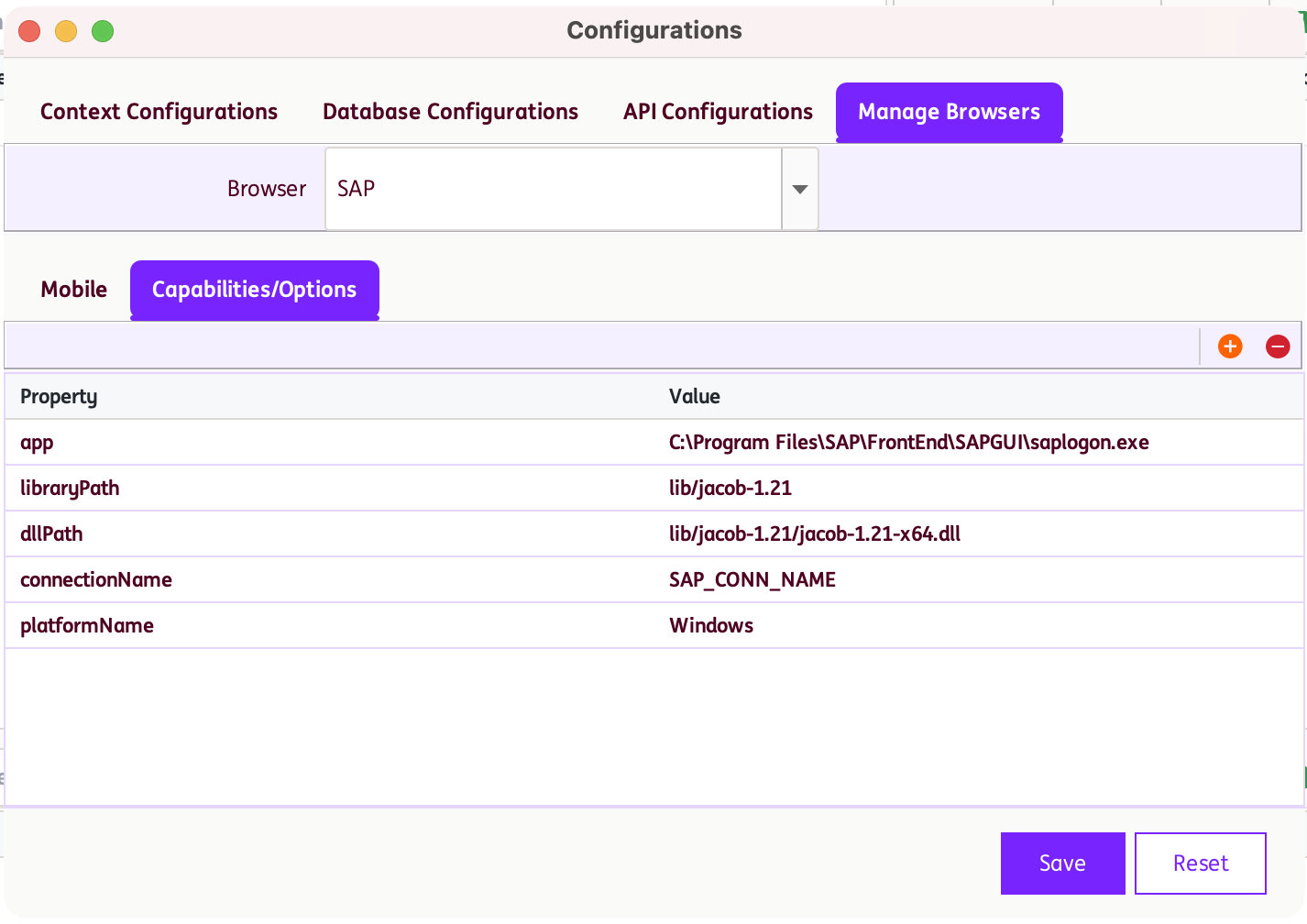
- Click on Save button to save your SAP Configuration.
Note
- Make sure you have the correct SAP connection details from your SAP GUI.
- SAP Testing in INGenious is integrated using the JACOB (Java COM Bridge) library to enable Java to communicate with the SAP GUI via COM automation. This is why you must provide the correct path to the JACOB DLL and library files in your configuration.
Write Tests
-
Head over to the Design Pane of INGenious
-
Click SAP Object Repository icon

-
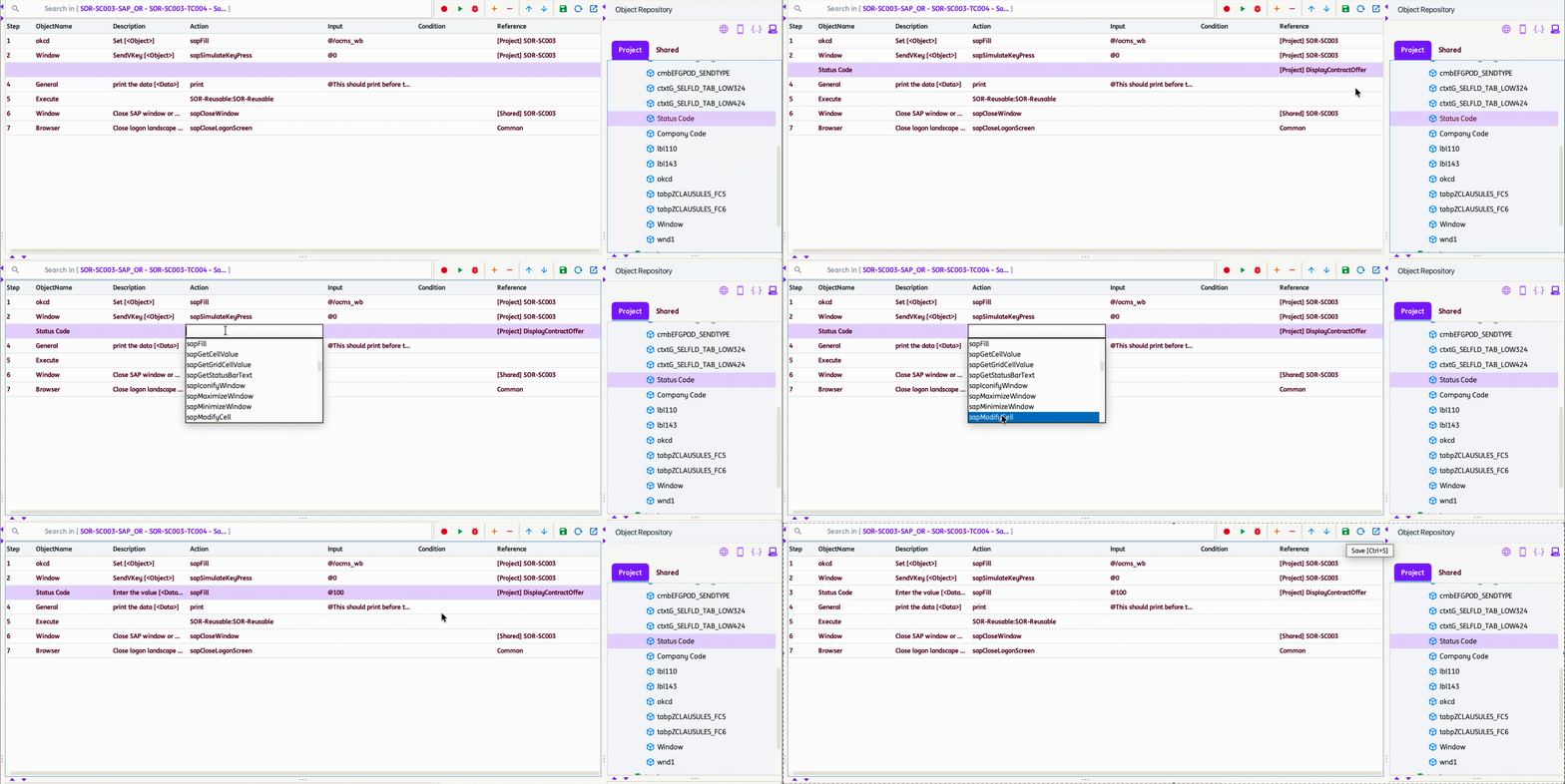
Create Objects with appropriate attributes like
id,nameandText. These can easily be captured using SAP Sripting Tracker Tool -
Drag and drop the objects into the test case canvas
-
Select appropriate actions for each relevant step like
sapFill,sapClick, etc.
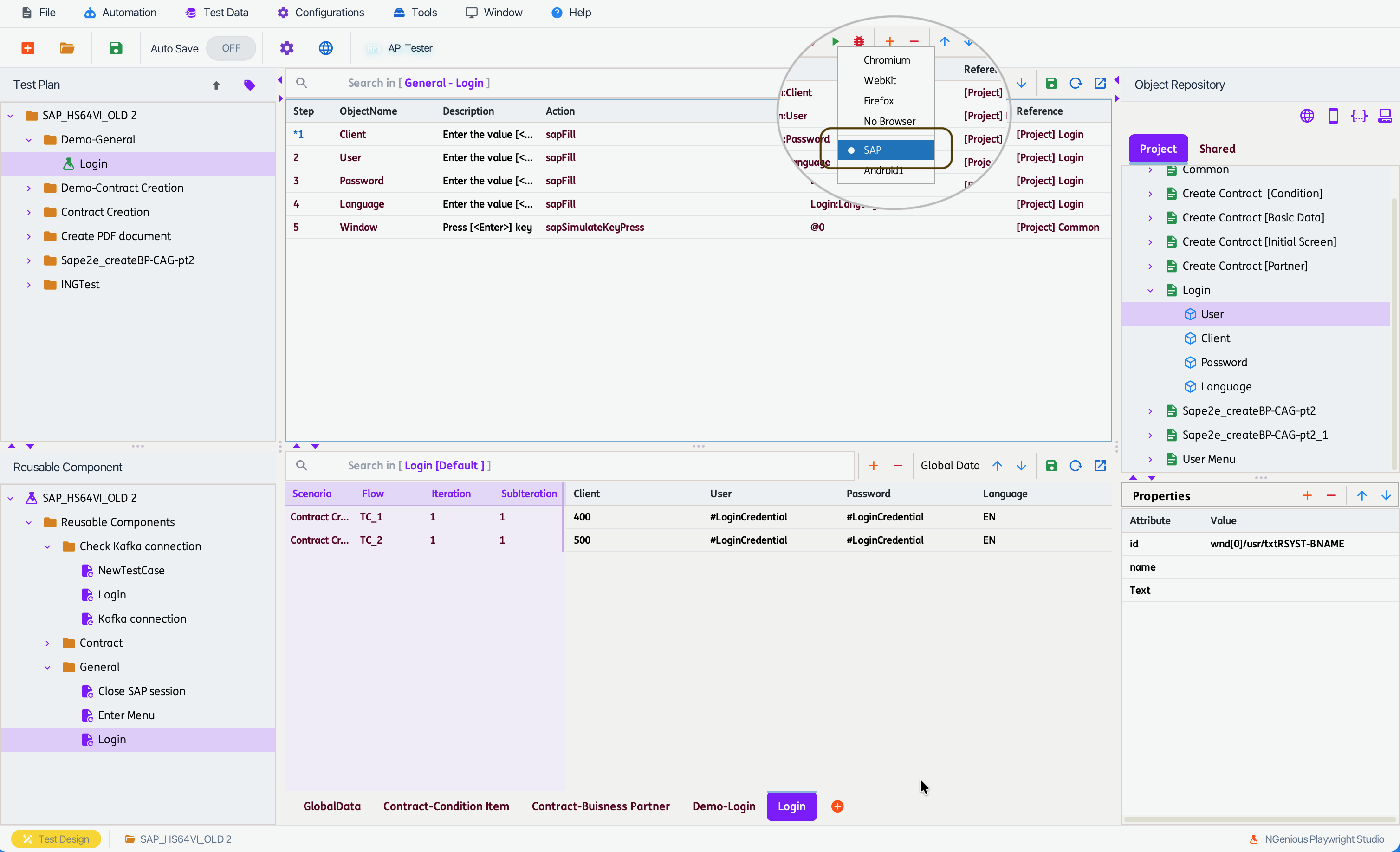
Test Execution - Design Pane
While running the test from the Design Pane, make sure to select the appropriate SAP Configuration that was created for the test. You can do that by right clicking on the Run Button and selecting the Configuration.
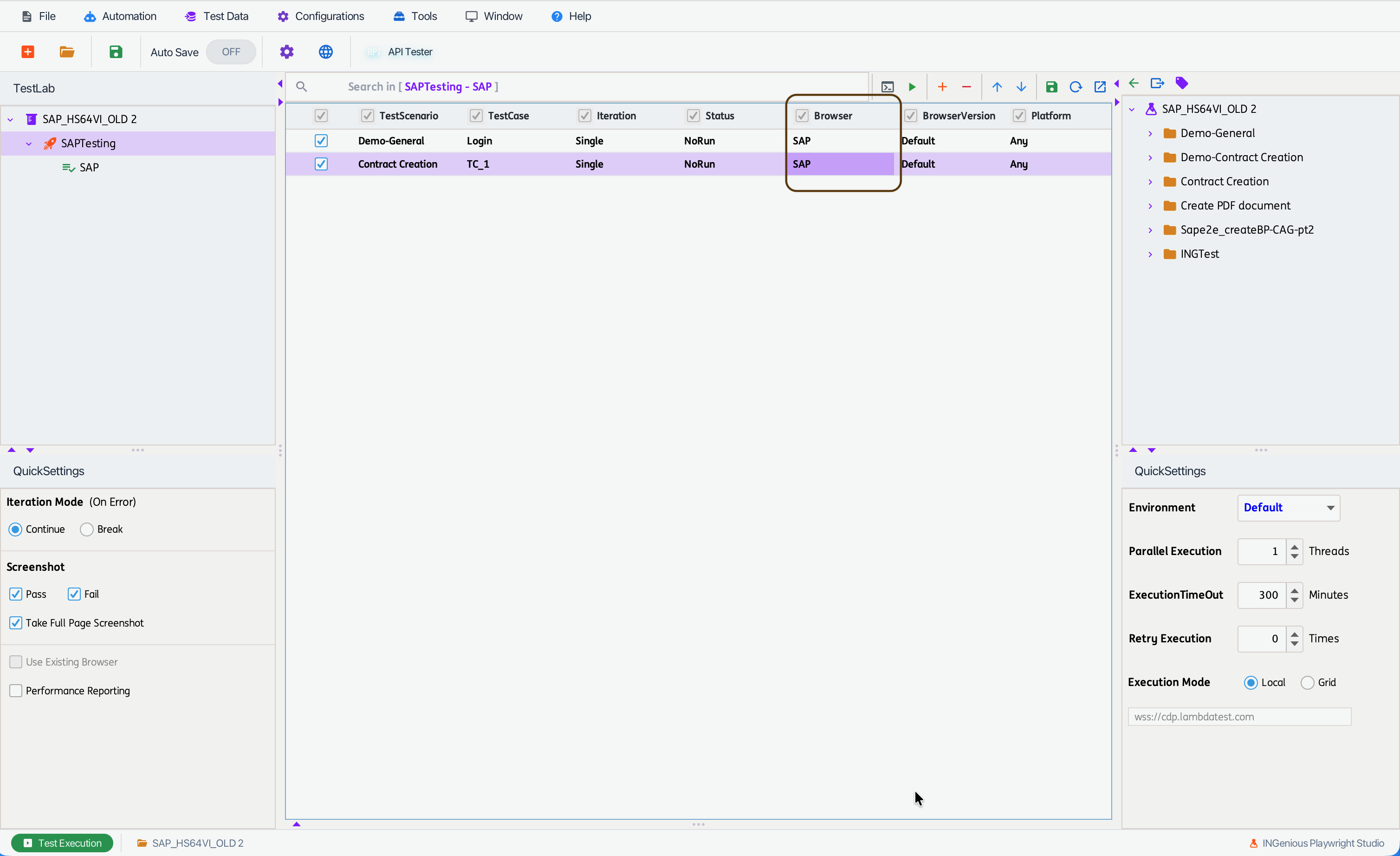
Test Execution - Execution Pane
While running the test from the Execution Pane, make sure to select the appropriate SAP Configuration that was created for the test. You can do that by selecting the Configuration in the Browser Column.