Command Line Interface
CLI
INGenious has a rich set of command line options for execution with parameters, retrieving execution details, setting variables, change settings etc.
CLI Options (Modern)
Run
Use ingenious run to run from the CLI. You can append --help to the commands below to display usage.
Options |
Output |
|---|---|
testcase |
Run a specific test case |
testset |
Run a specific test set |
tags |
Run tests with matching tags |
rerun |
Rerun failed tests from last execution |
The run command also supports auto-detection — you can pass a path directly and it detects whether it is a test case or test set:
Single Test Case Execution
The modern run command auto-detects whether the path refers to a test case or a test set. The above is equivalent to the explicit:
Test Set Execution
Or explicitly:
Test Set Execution with specific tags
Or explicitly:
Test Set Execution with Updated Environment Settings
In the above example, the test set will be forced to be executed on Acceptance Environment.
Rerun Failed Tests
Re-executes only the test cases that failed in the last run of the given target.
Headless Execution
Parallel Test Set Execution
Runs the test set across 4 parallel threads.
Project Management
Use ingenious project to use project management commands. You can append --help to the command to display possible commands.
Options |
Output |
|---|---|
list |
List all projects in a directory |
info |
Show project information |
validate |
Show a health dashboard for the project |
create |
Create a new project |
upgrade |
Interactive upgrade wizard: modernise ORs, test cases, and clean up legacy files |
List projects in a specific directory:
Show project information:
Validate project health:
Create a new project:
Upgrade Wizard
Automatically accept all defaults:
Preview changes without modifying files:
The upgrade wizard walks through:
- Test Data Migration — adds the
Scopefield to test datasheets - Object Repository Conversion — converts XML ORs to YAML
- Test Case Migration — converts CSV test cases to YAML
- Deprecated File Cleanup — removes legacy XML stubs
- Reusable Relocation — moves mislocated reusables to
ReusableComponents/
Configuration Management
Use ingenious config to use configuration management commands. You can append --help to the command to display possible commands.
Options |
Output |
|---|---|
show |
Show all configuration settings |
get |
Get a configuration value |
set |
Set a configuration value |
drivers |
Manage browser drivers |
reset |
Reset configuration to defaults |
prefixes |
List all recognised -setEnv / set-env override prefixes |
Show all configuration:
Get a specific value:
Set a value:
List all recognised override prefixes:
Check browser drivers:
Report Management
Use ingenious report to use report management commands. You can append --help to the command to display possible commands.
Options |
Output |
|---|---|
latest |
Show latest test execution results |
history |
Show test execution history |
show |
Show details of a specific run |
export |
Export report in various formats |
compare |
Compare two test runs |
Show latest execution results:
Show test execution history (last 10 runs):
Show details of a specific run:
Export report to JSON:
Compare two runs:
Shell Session
Use ingenious shell to use shell commands. You can append --help to the command to display usage.
Start with a pre-set project:
Inside the shell you can use shorter commands like run Login/Smoke, scenario list, config show, etc.
Modern Override Settings
The modern CLI provides typed override flags as a more ergonomic alternative to -setEnv. These are available on all ingenious run … subcommands and accept key=value pairs for their respective bucket.
| Flag | Bucket | Example |
|---|---|---|
--set-env |
Raw pass-through | --set-env "run.var=value" |
--driver |
Driver / Launch Configurations | --driver "RemoteURL=http://hub:4444" |
--user |
User Defined Settings | --user "Key1=NewValue1" |
--tm |
Test Management Settings | --tm "ProjectKey=DEMO" |
--capability |
Per-browser capability | --capability "Chrome.headless=true" |
--db |
Database properties | --db "mydb.ConnectionString=server=..." |
--context |
Browser Context | --context "test.password=secret" |
--api |
API properties | --api "myapi.BaseURL=https://api.example.com" |
--kafka-ssl |
Kafka SSL Config | --kafka-ssl "Producer_Key_Password=P@ssw0rd" |
--lambdatest-cap |
LambdaTest Grid Capabilities | --lambdatest-cap "build=ci-1234" |
--browser-arg |
Per-browser launch flag | --browser-arg "Chrome.1=--headless=new" |
--browser-set |
Per-browser property | --browser-set "Chrome.mySetting=value" |
--device |
Per-device override | --device "Pixel5.RemoteURL=http://hub:4723" |
--tm-module |
AzureDevOps TestPlan module | --tm-module "AzureDO.__enabled=true" |
Examples using typed overrides:
Multiple overrides can be combined:
Find all recognised prefix names at any time with:
Examples (Modern)
Version Information
Action Discovery
List all available Browser actions:
Search for actions by keyword:
Show detailed action information:
List action categories with counts:
CLI Options (Legacy)
Options |
Output |
|---|---|
-v,-version |
Display current build details |
-run |
Run with the given details |
-rerun |
Rerun the last execution |
-project_location |
Project Location for Execution |
-scenario |
Scenario Name |
-testcase |
Testcase Name |
-browser |
Browser Name (Not applicable for Testset Execution) |
-release |
Release Name |
-testset |
Testset Name |
-tags |
Tags of Test Cases to be exceuted |
-bDate |
Display current build date |
-bTime |
Display current build time |
-bVersion |
Display current build version |
-dont_launch_report |
Disables launching summary report after execution |
-help |
Help |
-hi |
Says Hello! |
-t |
Display Current Time |
-latest_exe |
Returns the given property value for the latest execution |
-latest_exe_loc |
Returns the results folder for the latest execution |
-latest_exe_status |
Returns the status for the latest execution |
-latest_exe_data_loc |
Returns the Report data location for the latest execution |
-latest_exe_data_raw |
Returns the Report data for the latest execution |
-latest_exe_log_loc |
Returns the log file location for the latest execution |
-latest_exe_log_raw |
Returns the log file for the latest execution |
-latest_exe_perf_status |
Returns the page load performance results for latest execution |
-latest_exe_perf_report |
Returns the page load performance report for latest execution |
-checkPagePerf |
Returns the page load performance results after Run |
-setVar |
Create/Set user defined variable [-setVar "var=value"] |
-setEnv |
Create/Set Env settings |
-standalone_report |
Create Standalone Report instead of Relative one |
Legacy Override Settings
-setEnv is a very powerful command to override all the environment settings and userdefined variables.
This can override the values in all of these settings :

Lets look at the Run Settings for a Test Set. If we enter into the project location and navigate to the following location :
Settings\TestExecution\<ReleaseName>\<TestSetName>
We will find the RunSettings.Properties and the TestMgmtSettings.Properties files.
The RunSettings.Properties holds all the corresponding settings that we enter via the UI of the framework.
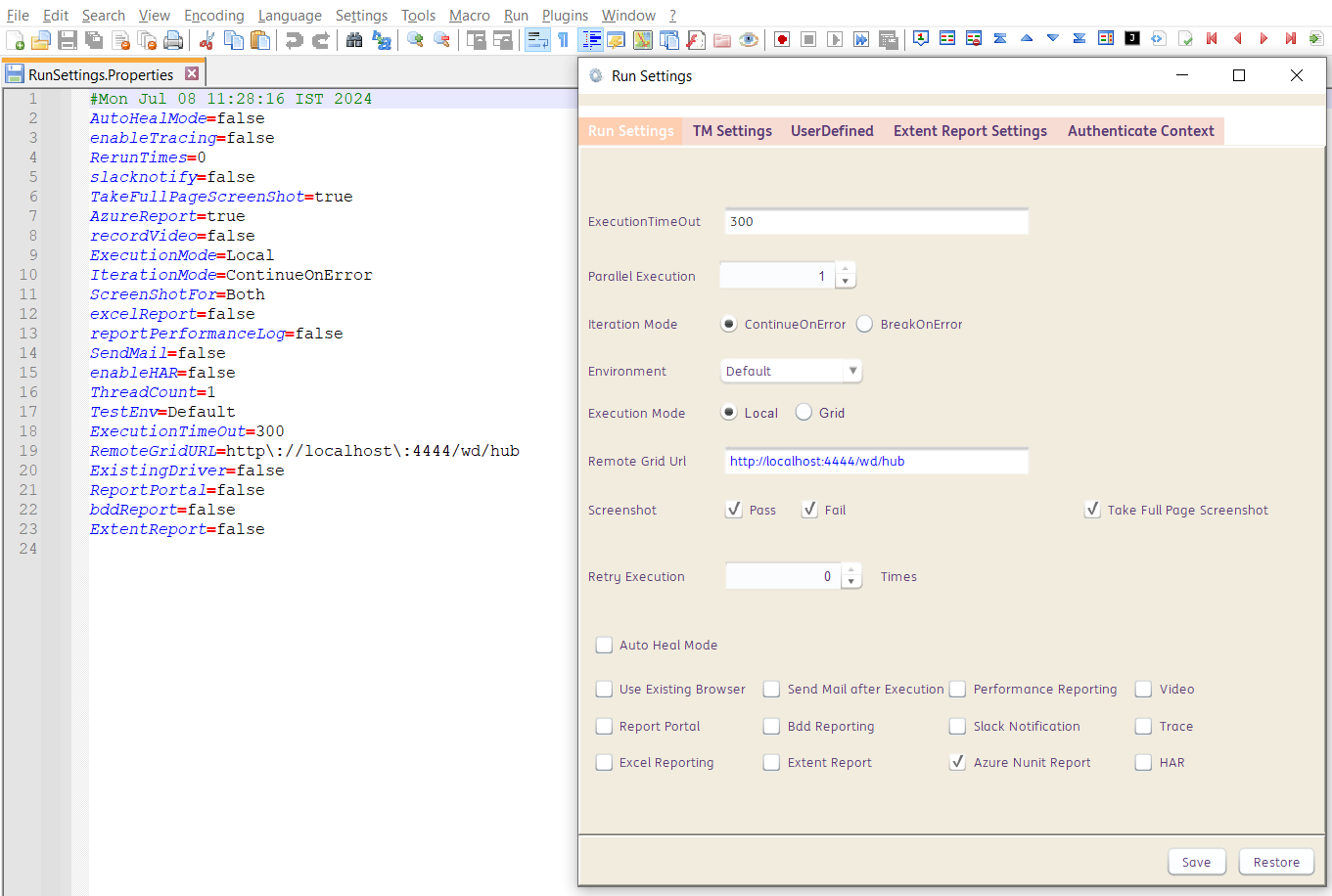
Any of these properties can be overriden by -setEnv.
For Example: -setEnv "run.TakeFullPageScreenShot=False"
Similarly, if we go to the project location and navigate to Settings\ directory, the userDefinedSettings.Properties holds all the corresponding data that we enter via the UI of the framework.
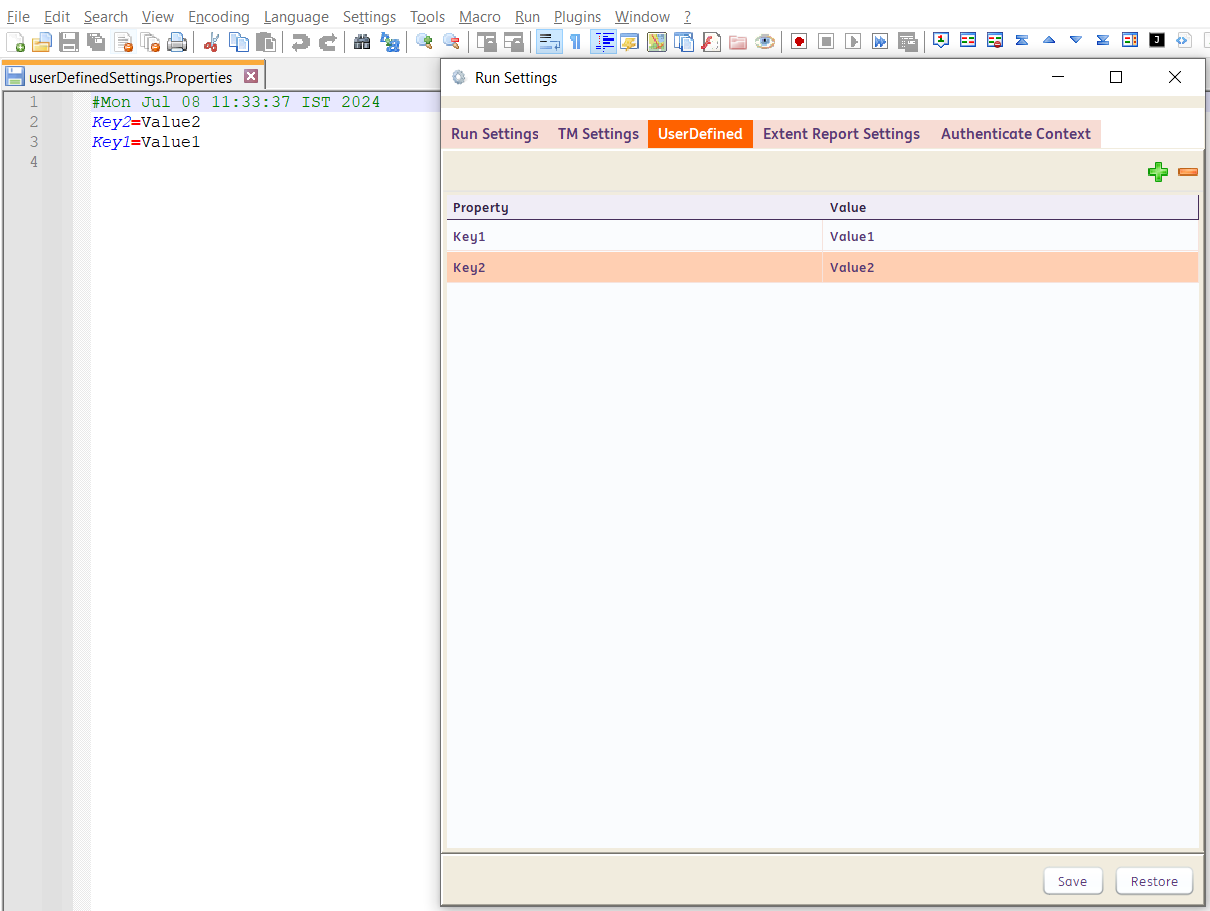
We can use by -setEnv to override these values too.
For Example: -setEnv "user.Key1=NewValue1"
Similarly, if we go to the project location and navigate to Settings\ directory, the KafkaSSLConfigurations.Properties holds all the corresponding data that we enter via the UI of the framework.
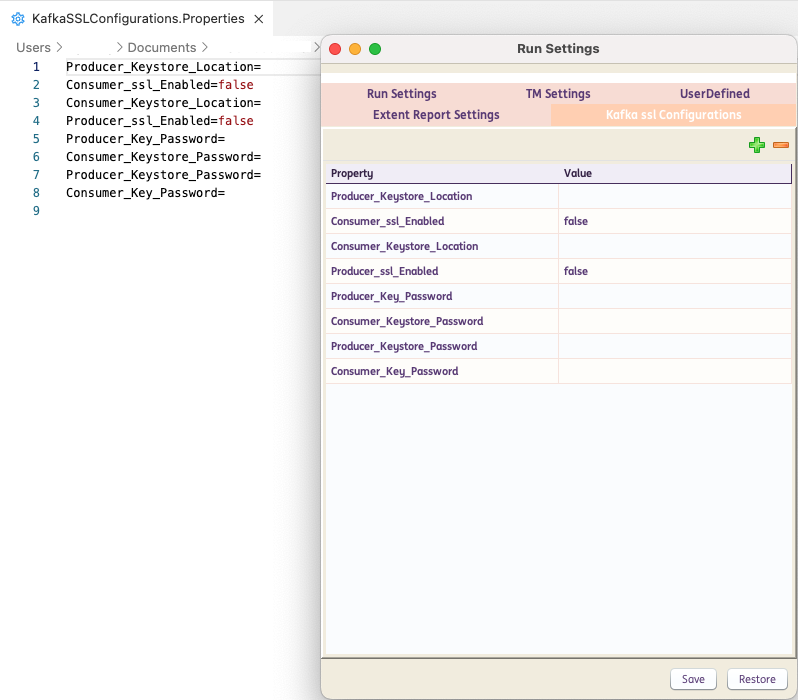
We can use by -setEnv to override these values too.
For Example: -setEnv "kafkaSSl.Producer_Key_Password=P@ssw0rd"
For the following settings, -setEnv can be used as follows :
| Settings | option |
|---|---|
| Global Settings | -setEnv "exe.SettingName=Value" |
| Run Settings | -setEnv "run.SettingName=Value" |
| User Defined Settings | -setEnv "user.SettingName=Value" |
| Kafka SSL Configurations | -setEnv "kafkaSSl.SettingName=Value" |
| Driver Settings | -setEnv "driver.SettingName=Value" |
| Test Management Settings | -setEnv "tm.SettingName=Value" |
| Browser Capability Settings | -setEnv "capability.browserName.SettingName=Value" |
| Browser Context Settings | -setEnv "context.aliasName.SettingName=Value" |
| Database Settings | -setEnv "'db.aliasName.SettingName=Value" |
| API Settings | -setEnv "'api.aliasName.SettingName=Value" |
NOTE: These prefixes can also be shown in the console with command 'config prefixes'
Examples :
Multiple settings can be altered via a single command as well :
Examples (Legacy)
Single Test Case Execution
Test Set Execution
Test Set Execution with specific tags
Test Set Execution with Updated Environment Settings
In the above example, the test set will be forced to be executed on Acceptance Environment